> For the complete documentation index, see [llms.txt](https://integrations.drivetrain.ai/llms.txt). Markdown versions of documentation pages are available by appending `.md` to page URLs; this page is available as [Markdown](https://integrations.drivetrain.ai/extending-drivetrain/google-sheets-add-on.md).
# Google Sheets add-on
Export your Drivetrain board data directly to Google Sheets.
[Overview](#overview)\
[How to install or authorize the Drivetrain add-on](#installing-and-authorizing-the-drivetrain-add-on)\
[How to create a new connection](#creating-a-new-connection)\
[How syncing works](#how-syncing-works)\
[How to resync data](#manually-syncing-data)\
[How to resync a single connection](#resync-a-single-connection)\
[How to resync all connections](#resync-all-connections)\
[How to edit or delete a connection](#editing-and-deleting-a-connection)
## Overview
The **Drivetrain add-on for Google Sheets** seamlessly connects your Drivetrain boards to Google Sheets, allowing you to analyze and present data in a familiar spreadsheet environment. With just a few clicks, you can import live data, refresh it on demand, and streamline your reporting workflows—eliminating the need for manual copy-pasting.
Once you install the Drivetrain add-on and sign in with your Drivetrain credentials, you can:
* **Import** tables and lists from Drivetrain boards directly into Google Sheets.
* **Refresh** your data anytime with a simple click.
* **Build dynamic boards** with charts and tables that update automatically.
* **Embed live data** into Google Slides presentations for up-to-date insights.
Getting started is quick and easy—let’s dive in!
## **Installing and authorizing the Drivetrain add-on**
{% stepper %}
{% step %}
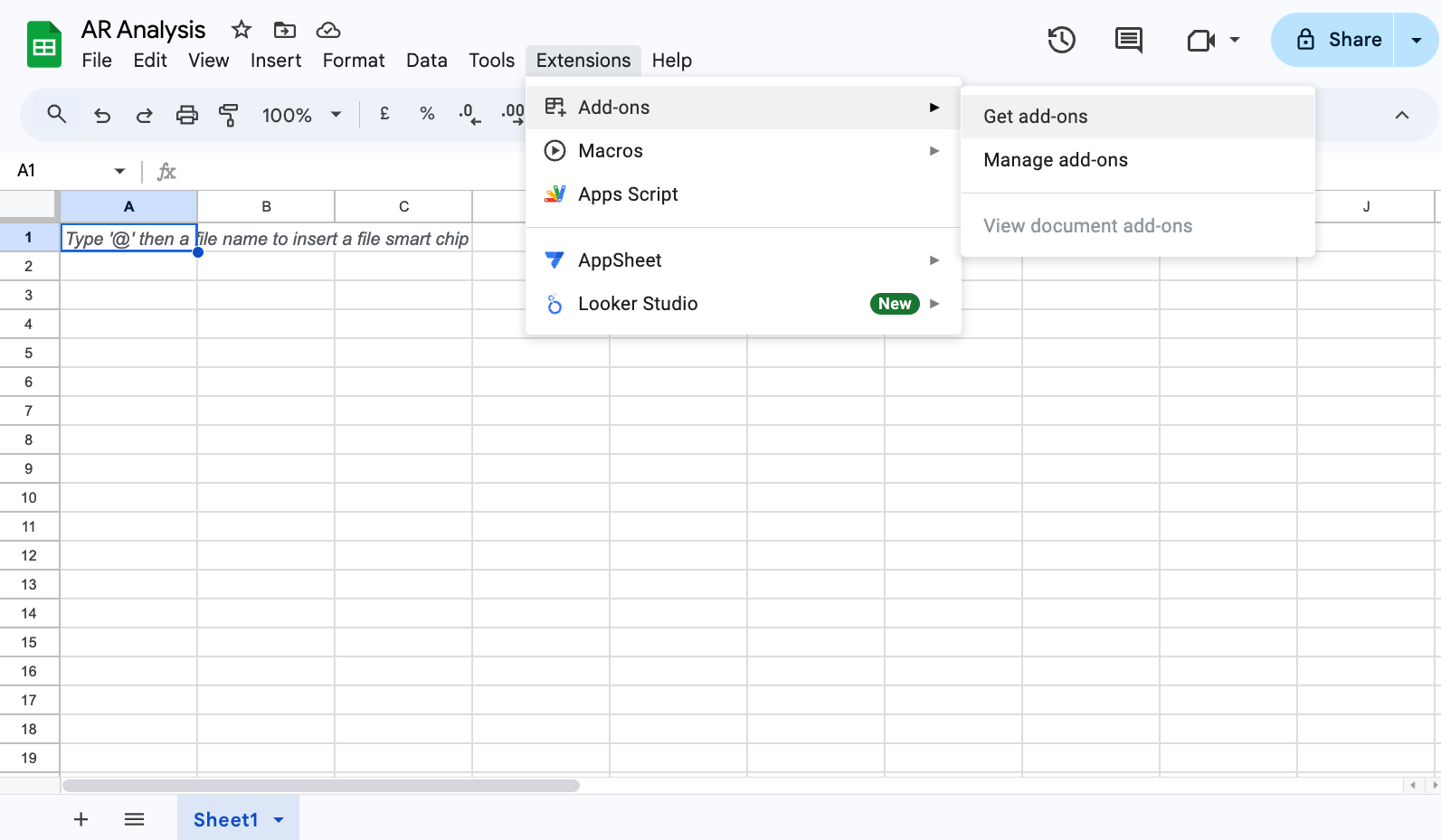
Go to your Spreadsheet → **Extensions** → **Get add-ons**
{% endstep %}
{% step %}
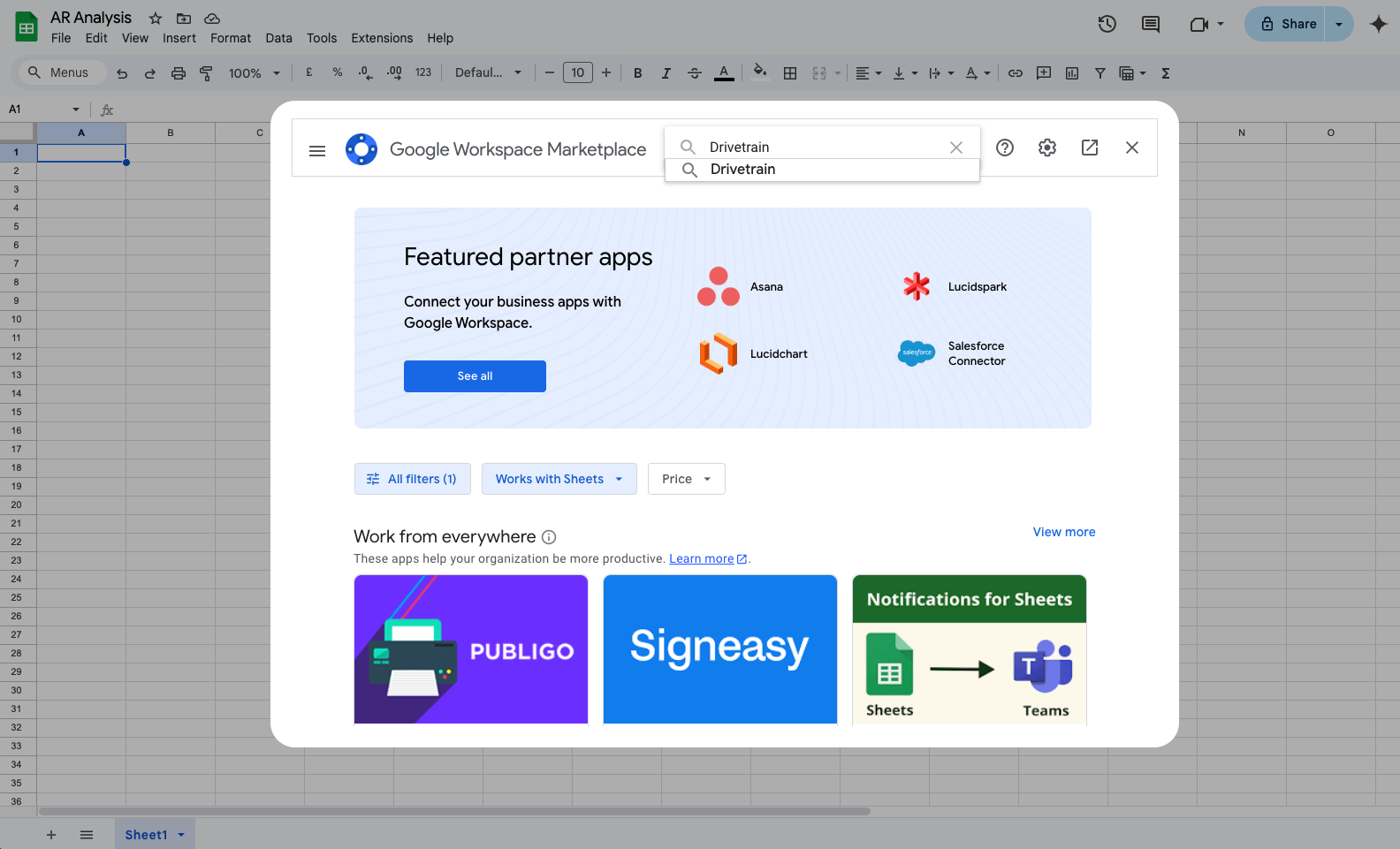
Search for "Drivetrain" in the search bar
{% endstep %}
{% step %}
Find and select the **Drivetrain** card, and click **Install**
{% endstep %}
{% step %}
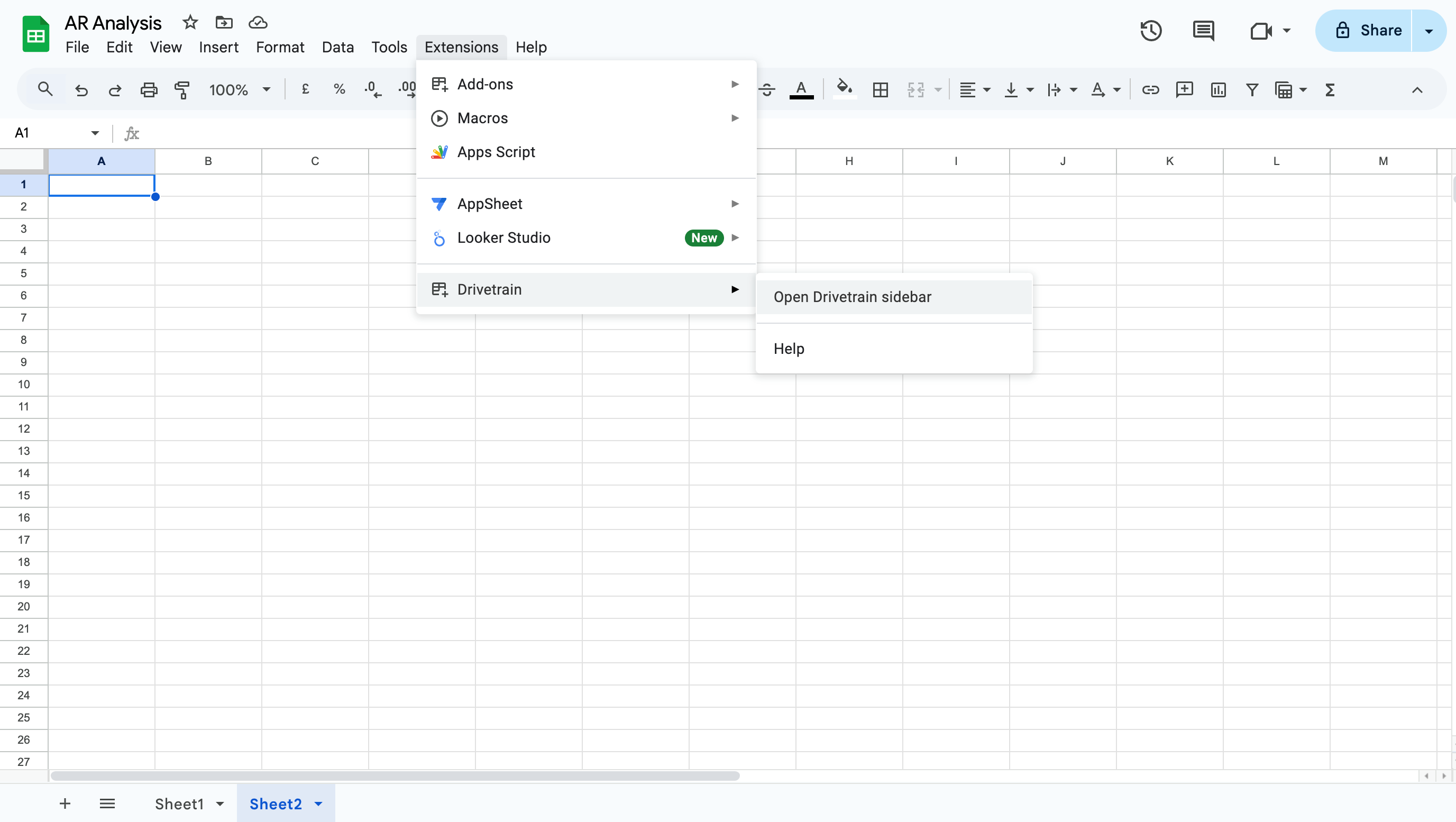
After installation, go to **Extensions** → **Drivetrain** → **Open Sidebar**.
* **Enter your Drivetrain instance URL**: `{your-instance-name}.drivetrain.ai`.
* **Authorize the integration**—users can only import data they have access to.
Once authorization is complete, you can **start adding connections and importing data**.
{% endstep %}
{% endstepper %}
## **Creating a new connection**
Once the Drivetrain add-on is installed and authorized, you can **create connections** to sync data from Drivetrain boards into Google Sheets.
{% stepper %}
{% step %}
### **Add a new connection**
* Open Google Sheets and navigate to **Extensions → Drivetrain → Open Sidebar**.
* Click **"Add New"** to create a new connection.
* Enter the **chart ID** and select the Google Sheet where the data should be synced.
{% hint style="danger" %}
The selected sheet will be **overwritten** with the respective chart data.
{% endhint %}
{% endstep %}
{% step %}
### Find the Chart ID
* In Drivetrain, navigate to the **board** containing the table you want to sync.
* Click the **vertical ellipsis (⋮)** on the table.
* Select **"Copy Chart ID"** and paste it into the Drivetrain add-on in Google Sheets.
{% endstep %}
{% step %}
### **Save & sync**
* Enter the **chart ID** and select the sheet, then click **Save** to create the connection.
* This will also **trigger an initial sync**, pulling data into Google Sheets.
* Wait about **a minute** for the sync to complete.
{% endstep %}
{% endstepper %}
## **How syncing works**
* The **default time range** of the table applies to the synced data. (e.g., If the table filter is "Last 3 months," only the last three months of data will sync.)
* Any **dimensions, scenarios, versions, and comparison series** from the table will appear in the Google Sheet.
* You can **add multiple connections** by repeating these steps for other tables.
Your data is now live in Google Sheets, ready for analysis and reporting.
{% hint style="info" %}
When data is refreshed using the [Google Sheets add-on,](/extending-drivetrain/google-sheets-add-on.md) all existing formatting in your sheet—such as fonts, colors, borders, and number formats—is retained.
{% endhint %}
### **Manually syncing data**
If your data needs to be updated or refreshed, you can **manually trigger a resync** to pull the latest updates from Drivetrain board(s) into Google Sheets.
#### **Resync a single connection**
1. Open **Google Sheets** and navigate to **Extensions → Drivetrain → Open Sidebar**.
2. Locate the connection you want to refresh in the list.
3. Click **"Resync"** to update the data for that specific connection.
#### **Resync all connections**
You can refresh all connections at once using **Sync all.** This is useful when you want to update every imported table simultaneously.
To **resync all connections:**
1. Open **Google Sheets → Extensions → Drivetrain → Open Sidebar**
2. Click **Sync all** at the top of the imports list
3. **All connections begin syncing** at the same time
Each connection will show a **Syncing status** while the refresh is in progress. Once complete, the sidebar updates with the latest sync time.
### Scheduling a sync
You can automatically refresh your imports at a set time using Schedule sync. This helps keep your data up to date without manually triggering syncs.
#### To schedule a sync
1. Open **Google Sheets → Extensions → Drivetrain → Open Sidebar**
2. Click the dropdown next to **Sync all**
3. Select **Schedule sync**
**To configure the schedule**
1. Turn on **Schedule sync**
2. Choose **how often** to run the sync (only **Daily** is currently supported)
3. Select the **time** using the **At field**
4. The **timezone** **shown** reflects your **local settings**
5. **Close the dialog** to save your schedule

Once enabled, your imports automatically sync at the configured time.
## **Editing and deleting a connection**
You can modify or remove connections at any time to update or clean up your synced data.
### **Editing a connection**
1. Open **Google Sheets** and navigate to **Extensions → Drivetrain → Open Sidebar**.
2. Locate the connection you want to modify.
3. Click the **vertical ellipsis (⋮)** next to the connection and select **Edit**.
4. Update the **chart ID** or select a different **Google Sheet**.
5. Click **Save** to apply the changes.
6. **Note:** Editing and resyncing a connection will **overwrite data** in the newly selected sheet—proceed with caution.
### **Deleting a connection**
1. Open the **Drivetrain add-on sidebar** in Google Sheets.
2. Find the connection you want to remove.
3. Click the **vertical ellipsis (⋮)** and select **Delete**.
4. Confirm the deletion—this will remove the connection but **won’t affect existing data** in the spreadsheet.
## FAQ
What chart types can I import from Drivetrain to Google Sheets with the add-on?
You can only import tables or lists from Drivetrain boards to Google Sheets with the add-on. Copy the chart ID and paste it into the add-on sidebar to start the import.
Why do I see a “Service unavailable” message when authorizing the Drivetrain add-on?
This can occur if you are logged into **multiple Google accounts** (for example, both a **work** and a **personal** **account**) in the same browser session.
**To fix this:**
1. **Log out of all other Google accounts** in your browser, keeping only the **one linked to Drivetrain.**
2. Alternatively, open **Google Sheets in an Incognito window** or another browser.
3. Reopen the Drivetrain add-on and **reauthorize your account.**
---
# Agent Instructions
This documentation is published with GitBook. GitBook is the documentation platform designed so that both humans and AI agents can read, navigate, and reason over technical content effectively. Learn more at gitbook.com.
## Querying This Documentation
If you need additional information that is not directly available in this page, you can query the documentation by asking a question.
Perform an HTTP GET request on the following URL with the `ask` and `goal` query parameters:
```
GET https://integrations.drivetrain.ai/extending-drivetrain/google-sheets-add-on.md?ask=&goal=
```
`ask` is the immediate question: it should be specific, self-contained, and written in natural language.
`goal` is what the user is ultimately trying to achieve, the reason they need the answer. Sharing it helps GitBook give you a better, more relevant answer. A goal is most helpful when it describes the outcome the user wants rather than restating the question. For example, with `ask=how do I create an API token`, a goal like `automate deployments from our CI pipeline` lets GitBook tailor the answer to that use case.
The response will contain a direct answer to the question and relevant excerpts and sources from the documentation.
Use this mechanism when the answer is not explicitly present in the current page, you need clarification or additional context, or you want to retrieve related documentation sections.


.gif?alt=media)
%20(4).gif?alt=media)