# Re-authentication of Xero
If your Xero sync is failing due to expired credentials, de-activated account, etc. you will need to re-authenticate the connection.
Once re-authentication is complete, your Xero connector will resume syncing automatically.
#### Prerequisites
Before you begin, make sure you have:
* An active **Xero account** with **Org Admin permissions**
* Your **Xero login credentials**
#### Step 1: Open the Xero Integration in Drivetrain
When a Xero connector has failed, you can re-authenticate the connection in the following ways:
1. Click **Reconnect** on the pop-up that appears when you open the Xero integration.
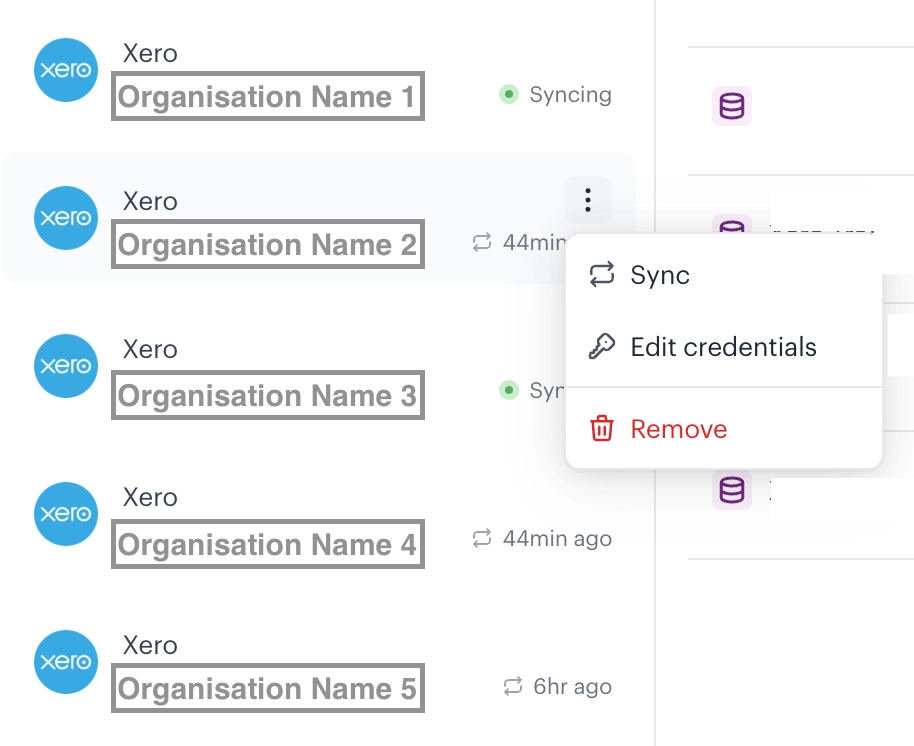
2. If the pop-up does not appear, click on the **Overflow Menu** (3 dots) beside the connector, select **Edit credentials**
3. Click on **Login to connect →** in the window that appears.
Either option takes you into the Xero login flow.
#### Step 2: Log In to Xero as an Admin
1. On the Xero login page, sign in using an **Org Admin** account.
2. If prompted, complete the **Multi-Factor Authentication** steps.
{% hint style="info" %}
**Re-authentication** must be completed using an **Org Admin account.** A standard user or non-admin role will not have sufficient permissions to re-authorize the connector.
{% endhint %}
#### Step 3: Disconnect Existing Drivetrain Apps in Xero
Before you continue, you must disconnect any existing Drivetrain apps in your Xero settings. If you skip this step, re-authentication will fail because duplicate Drivetrain apps are already registered in Xero.
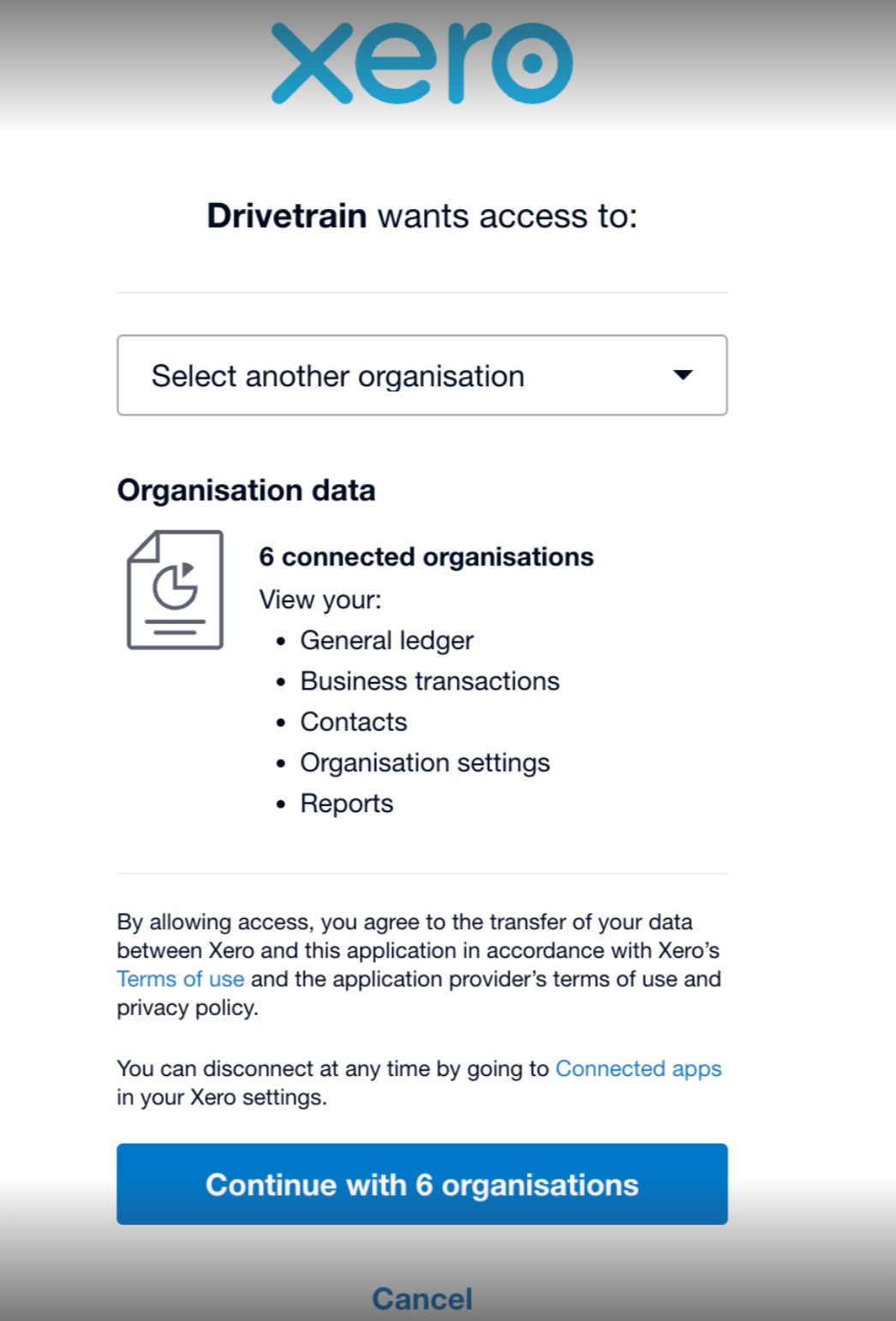
1. After logging in to your Xero account, locate the message at the bottom of the screen that reads: *"You can disconnect at any time by going to Connected Apps in your Xero settings."* Click the **Connected Apps** link within this message.
2. On the Connected Apps page, click **Disconnect** next to the Drivetrain app.
3. If you have multiple Drivetrain apps connected, you'll need to disconnect each one individually. Be sure to check all pages, as the list of connected apps may span multiple pages.
{% hint style="danger" %}
Re-authentication will not succeed until every Drivetrain app listed in Xero's **Connected apps** has been disconnected.
{% endhint %}
#### Step 4: Return to the Login Page and Select the organisation
After disconnecting the existing Drivetrain apps:
1. Return to the popup that appeared after logging in to Xero.
2. Sign in again with your Org Admin account, if you are prompted to.
3. Select the organization you want to reconnect with Drivetrain.
{% hint style="warning" %}
You must select the same organisation that was originally connected to Drivetrain for which the sync failed. If you select a different organisation, the connector will not be restored correctly.
{% endhint %}
If your Xero login is linked to multiple organisations (for example, USA, UK, or a parent entity), choose the exact organisation that matches the Drivetrain data source you are updating.
For example, if you are editing credentials for a data source labelled for **USA** in Drivetrain, you must select **USA** during Xero re-authentication.
#### Step 5: Allow Access and Complete Re-authentication
1. After selecting the correct organisation, click **Allow access** on the Xero authorization screen.
2. You will be redirected back to Drivetrain.
3. The Xero connector will refresh, and the sync will start automatically.
#### Troubleshooting
If re-authentication does not complete successfully, check the following:
* Confirm that you used an **Org Admin** account during login.
* Make sure **every** Drivetrain app in Xero's **Connected apps** list has been disconnected. Any leftover app will block the flow.
* Confirm that you selected the **same organisation** that is linked to the Drivetrain data source you are updating.
#### Still Stuck? We Can Help.
If you are unable to re-authenticate Xero after following all the steps above, reach out to your Drivetrain onboarding partner or Customer Success Manager.
{% hint style="info" %}
Include a short description of the step where the flow stopped, along with a **screenshot** of any error message. The Drivetrain team will help you troubleshoot and guide you through the next steps.
{% endhint %}
---
# Agent Instructions: Querying This Documentation
If you need additional information that is not directly available in this page, you can query the documentation dynamically by asking a question.
Perform an HTTP GET request on the current page URL with the `ask` query parameter:
```
GET https://integrations.drivetrain.ai/integration-guide/integrate-with-drivetrain/accounting-and-erp/integrating-with-xero/re-authentication-of-xero.md?ask=
```
The question should be specific, self-contained, and written in natural language.
The response will contain a direct answer to the question and relevant excerpts and sources from the documentation.
Use this mechanism when the answer is not explicitly present in the current page, you need clarification or additional context, or you want to retrieve related documentation sections.