> For the complete documentation index, see [llms.txt](https://integrations.drivetrain.ai/llms.txt). Markdown versions of documentation pages are available by appending `.md` to page URLs; this page is available as [Markdown](https://integrations.drivetrain.ai/integration-guide/readme/accounting-and-erp/integrating-with-campfire.md).
# Integrating with Campfire
Connect Campfire accounting to Drivetrain for streamlined financial planning. Covers API key setup, required permissions, and completing the integration.
This guide will walk you through connecting your **Campfire** **accounting** **platform** to **Drivetrain.**
### **Prerequisites**
Before beginning the integration, ensure you have the following:
1. An **active Campfire account** with permissions to create API tokens.
2. **Admin privileges** in Drivetrain.
### **Campfire Setup**
Follow the steps below to set up your Campfire instance so Drivetrain can authenticate and pull data.
#### Step 1: Create an API User
You need an API user and key to allow Drivetrain to connect.
1. Login to your Campfire account
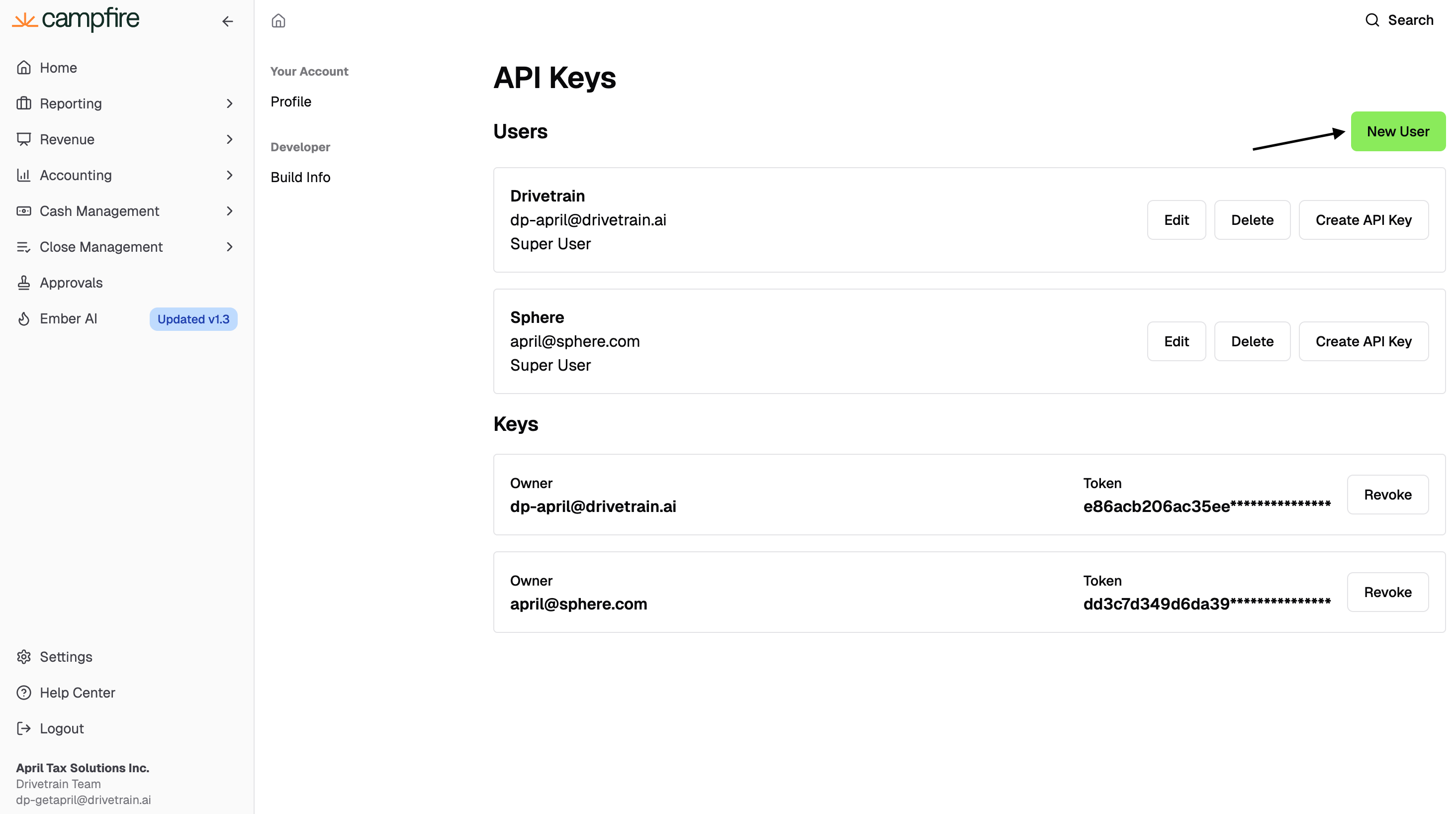
2. In Campfire, navigate to the **API Tokens (`Settings > API Keys`)** section.
3. Click **`New User`**.
4. Fill in the required fields (Name, Email, Role).
* `admin` - full access to APIs
* `clerk` - read access and ability to post drafts
* `view only` - read-only access via `GET APIs`
5. Save the new API user.
{% hint style="info" %}
**View only access** is sufficient to integrate **Campfire** with **Drivetrain.**
{% endhint %}
#### Step 2: Generate Your API Key
Once the API user is created:
1. Click **`Create API Key`** for that user.
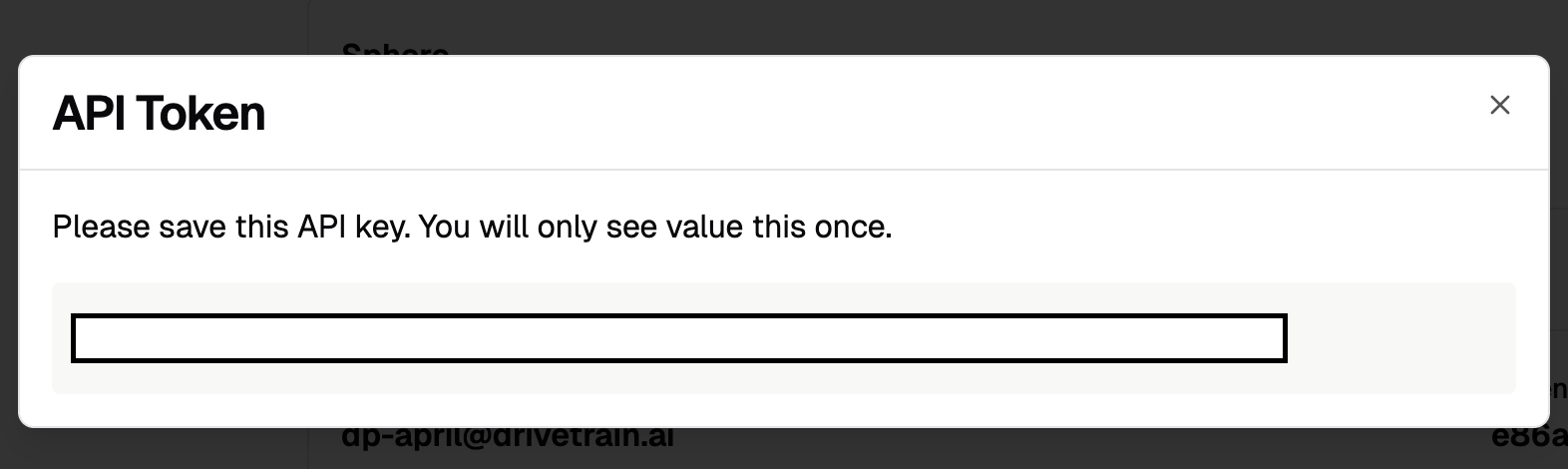
2. **Copy the generated API key** - this is shown only once.
3. Store it somewhere securely - you’ll need it for the Drivetrain connection.
#### Step 3: Integrating with Drivetrain
Now that your Campfire API credentials are ready, connect to Drivetrain:
1. Go to the **`Data`** page in Drivetrain.
2. Click the **`+ icon`** in the top-left corner to add a new data source.
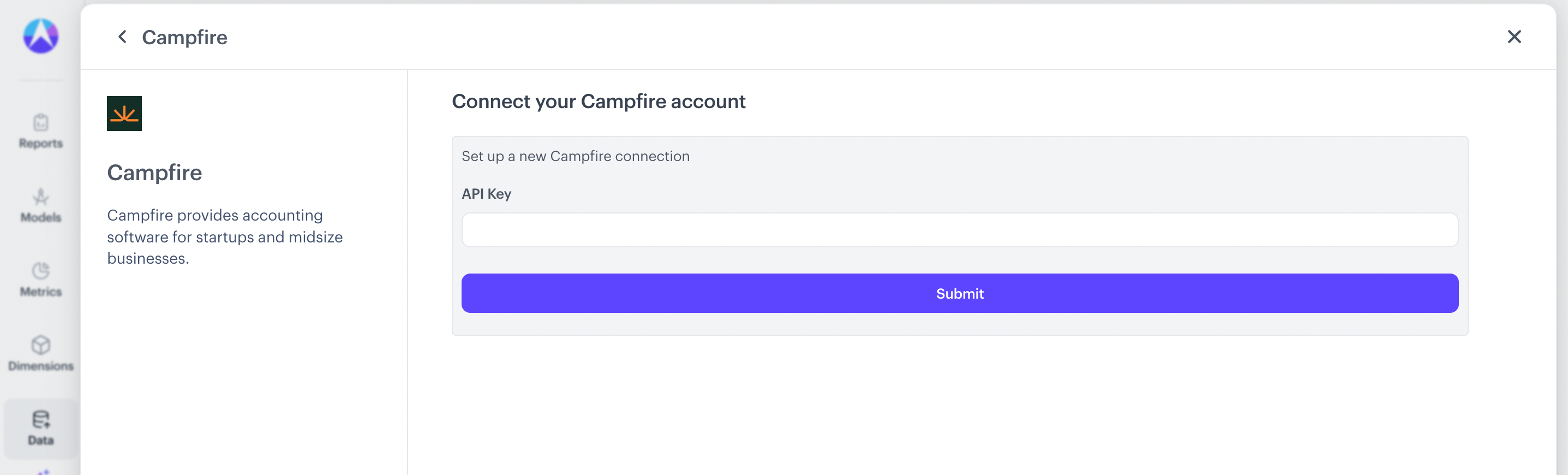
3. From the list of available integrations, select **`Campfire`**.
4. In the connection form, paste your API Key into the **`API Key`** field.
5. Click **Submit**.
Drivetrain will validate your credentials and begin syncing your Campfire data. You can monitor sync progress from the Data page.
### **Troubleshooting**
If you’re unable to connect Campfire to Drivetrain after completing the steps above, reach out to your Drivetrain onboarding partner. In most cases, no additional configuration is required.
{% hint style="info" %}
Include a **screenshot** or **brief description** of the error message. We'll help you troubleshoot and guide you through next steps.
{% endhint %}
---
# Agent Instructions
This documentation is published with GitBook. GitBook is the documentation platform designed so that both humans and AI agents can read, navigate, and reason over technical content effectively. Learn more at gitbook.com.
## Querying This Documentation
If you need additional information that is not directly available in this page, you can query the documentation by asking a question.
Perform an HTTP GET request on the following URL with the `ask` and `goal` query parameters:
```
GET https://integrations.drivetrain.ai/integration-guide/readme/accounting-and-erp/integrating-with-campfire.md?ask=&goal=
```
`ask` is the immediate question: it should be specific, self-contained, and written in natural language.
`goal` is what the user is ultimately trying to achieve, the reason they need the answer. Sharing it helps GitBook give you a better, more relevant answer. A goal is most helpful when it describes the outcome the user wants rather than restating the question. For example, with `ask=how do I create an API token`, a goal like `automate deployments from our CI pipeline` lets GitBook tailor the answer to that use case.
The response will contain a direct answer to the question and relevant excerpts and sources from the documentation.
Use this mechanism when the answer is not explicitly present in the current page, you need clarification or additional context, or you want to retrieve related documentation sections.