> For the complete documentation index, see [llms.txt](https://integrations.drivetrain.ai/llms.txt). Markdown versions of documentation pages are available by appending `.md` to page URLs; this page is available as [Markdown](https://integrations.drivetrain.ai/integration-guide/readme/accounting-and-erp/integrating-with-odoo.md).
# Integrating with Odoo
Sync Odoo ERP data with Drivetrain to bring accounting and operational data into models. Covers a dedicated user and an OAuth consumer key and secret.
### Prerequisites
To connect **Odoo to Drivetrain**, you need:
* An **active Odoo account** with admin permissions
#### Step 1: Create a Dedicated User for Drivetrain in Odoo
* Log in to **Odoo** as an **Admin**
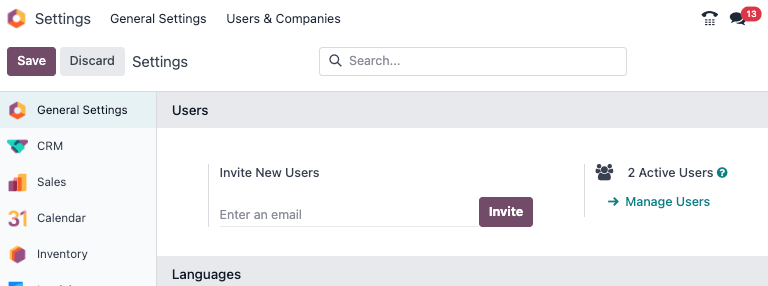
* Go to **Settings → Users → Manage Users**
* Click **New**
* Fill in the required user details
* **Email**: Use the email ID shared by your Drivetrain implementation team
* Go to the **Access Rights tab**
* Assign appropriate access based on the data Drivetrain needs
* Click **Save**
* An **invitation email** is sent automatically
* The user must accept the invite and set a password to activate the account
{% hint style="info" %}
Use **Internal User (required for API access)**
{% endhint %}
{% hint style="info" %}
**User Type** can be chosen on the **Manage Users page** by clicking on the search bar, and then setting a filter for either **Internal User** or **Portal User.**
{% endhint %}
#### Step 2: Generate Consumer Key and Consumer Secret (OAuth)
* Ensure your Odoo instance is configured for a **single database** (database filter enabled)
* Log in as an **Admin**
* Go to **Settings → Users → Users**
* Open the **Drivetrain user** created in [Step 1](#step-1-create-a-dedicated-user-for-drivetrain-in-odoo)
* Click **OAuth Applications**
* Click **Register an Application**
* Use the following **Redirect URI:**
* Click **Save**
* Copy the generated:
* **Consumer Key**
* **Consumer Secret**
#### Step 3: Share Details with Drivetrain
Share the following with your Drivetrain team via a **secure document:**
* **Odoo subdomain** (from your login URL)
* **Consumer Key**
* **Consumer Secret**
---
# Agent Instructions
This documentation is published with GitBook. GitBook is the documentation platform designed so that both humans and AI agents can read, navigate, and reason over technical content effectively. Learn more at gitbook.com.
## Querying This Documentation
If you need additional information that is not directly available in this page, you can query the documentation by asking a question.
Perform an HTTP GET request on the following URL with the `ask` and `goal` query parameters:
```
GET https://integrations.drivetrain.ai/integration-guide/readme/accounting-and-erp/integrating-with-odoo.md?ask=&goal=
```
`ask` is the immediate question: it should be specific, self-contained, and written in natural language.
`goal` is what the user is ultimately trying to achieve, the reason they need the answer. Sharing it helps GitBook give you a better, more relevant answer. A goal is most helpful when it describes the outcome the user wants rather than restating the question. For example, with `ask=how do I create an API token`, a goal like `automate deployments from our CI pipeline` lets GitBook tailor the answer to that use case.
The response will contain a direct answer to the question and relevant excerpts and sources from the documentation.
Use this mechanism when the answer is not explicitly present in the current page, you need clarification or additional context, or you want to retrieve related documentation sections.