> For the complete documentation index, see [llms.txt](https://integrations.drivetrain.ai/llms.txt). Markdown versions of documentation pages are available by appending `.md` to page URLs; this page is available as [Markdown](https://integrations.drivetrain.ai/integration-guide/readme/accounting-and-erp/integrating-with-xero/re-authentication-of-xero.md).
# Re-authentication of Xero
Xero connection expired? Re-authenticate your Drivetrain–Xero integration in minutes. This guide walks through re-authorization and verifying data resumes.
Reconnect Xero when its syncs fail because the sign-in expired or was revoked. This happens if the data source hasn't synced for 60 days or if someone disconnected Drivetrain in Xero. Once you reconnect, syncing resumes.
## Before you start
* You're a Drivetrain admin.
* Your Xero user has the **Standard** or **Advisor** role in the **same organisation** the data source is connected to.
## Step 1: Open the Xero sign-in
* If a **Login required** window appears when you open the Xero data source, click **Re-connect**.
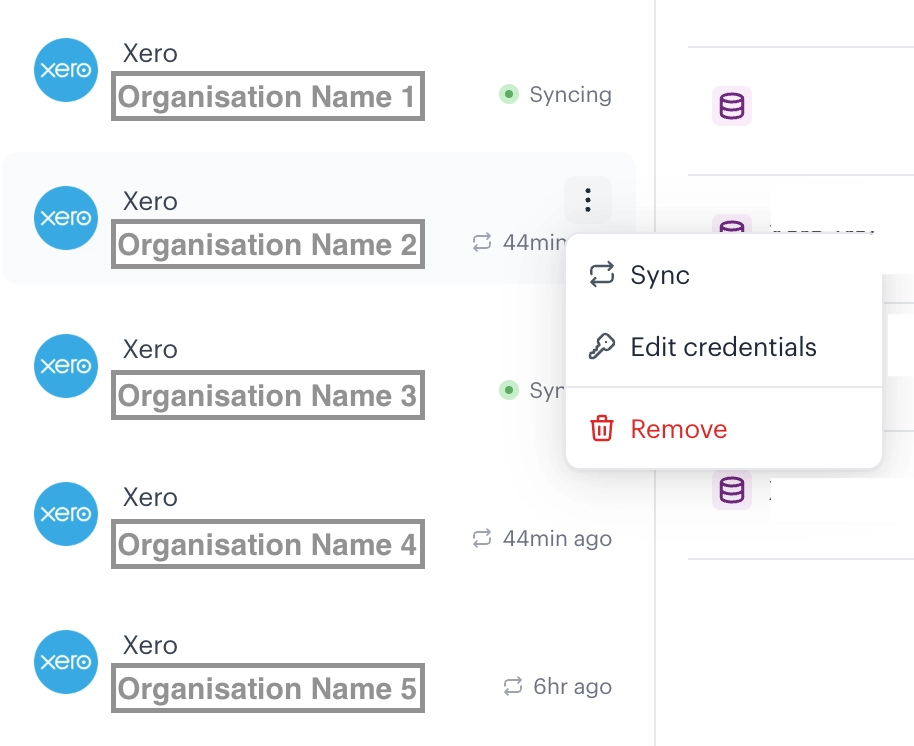
* Otherwise, click the **⋮** menu next to the data source, select **Edit credentials**, and click **Login to connect**.
## Step 2: Sign in and select the same organisation
1. Sign in to Xero and complete multi-factor authentication if asked.
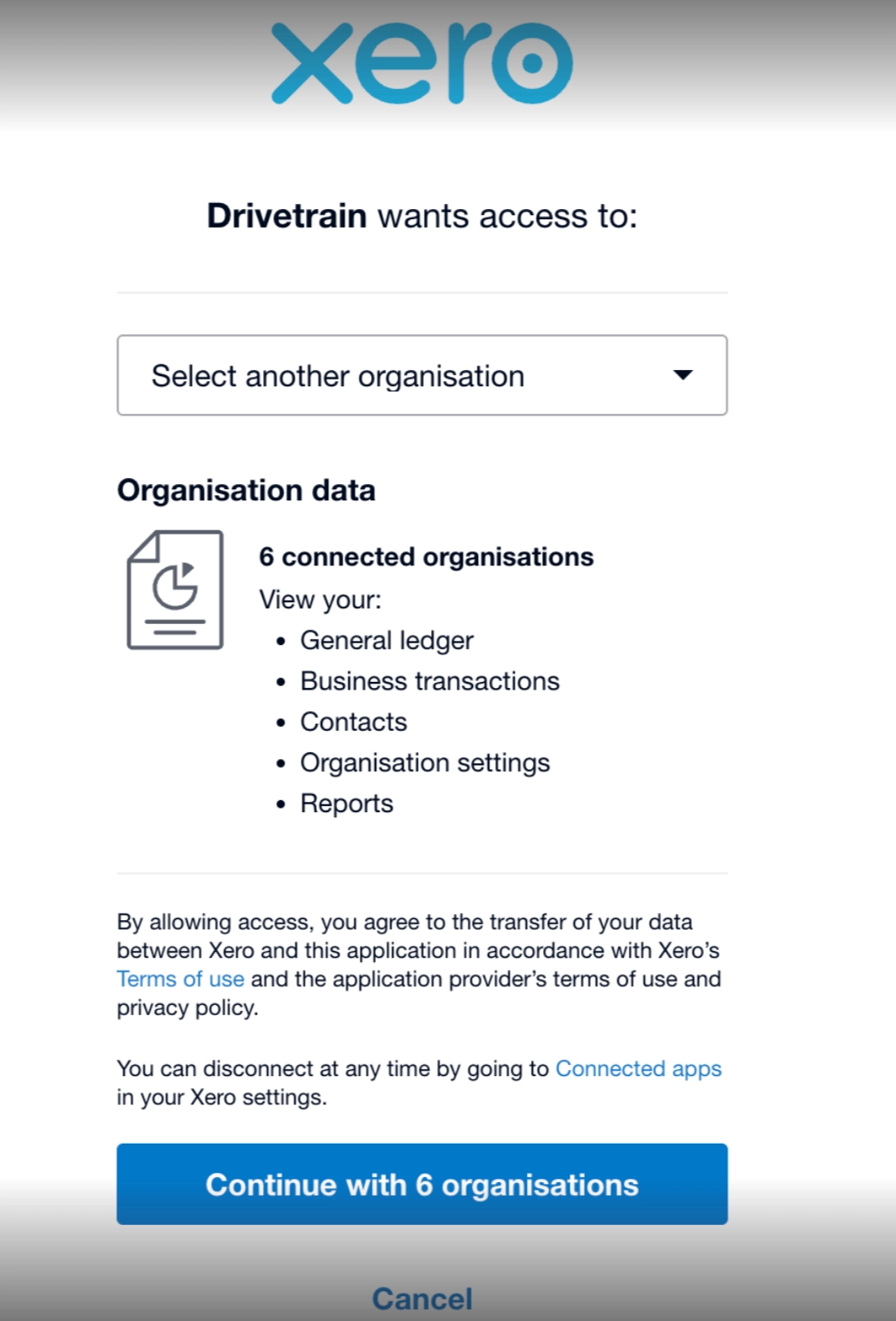
2. Select the organisation this data source was connected to. For example, if the data source is for your **USA** entity, select **USA**. Drivetrain rejects a different organisation.
3. Allow access.
You return to Drivetrain with **Credentials updated for Xero. A full sync has been initiated.**
## Troubleshooting
"This connection is for the Xero organisation …, which wasn't selected."
Repeat the steps and select that organisation.
Re-authentication still fails
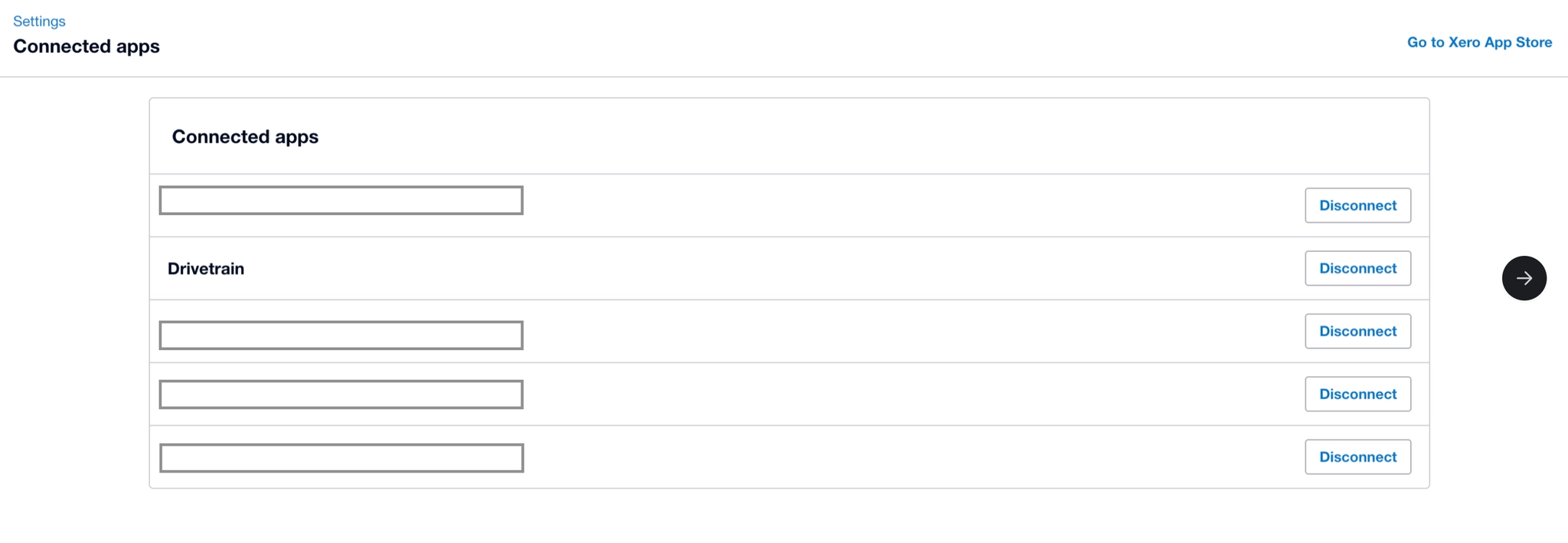
In Xero, open **Connected apps** in your organisation's settings and disconnect the Drivetrain app for this organisation, then repeat the steps. If the list has several Drivetrain entries, check every page of it. Disconnecting Drivetrain from an organisation also stops any other Drivetrain data source that uses that organisation until you reconnect it.
Still stuck?
Contact your Drivetrain onboarding partner or customer success manager with the step where the flow stopped and a screenshot of any error.
---
# Agent Instructions
This documentation is published with GitBook. GitBook is the documentation platform designed so that both humans and AI agents can read, navigate, and reason over technical content effectively. Learn more at gitbook.com.
## Querying This Documentation
If you need additional information that is not directly available in this page, you can query the documentation by asking a question.
Perform an HTTP GET request on the following URL with the `ask` and `goal` query parameters:
```
GET https://integrations.drivetrain.ai/integration-guide/readme/accounting-and-erp/integrating-with-xero/re-authentication-of-xero.md?ask=&goal=
```
`ask` is the immediate question: it should be specific, self-contained, and written in natural language.
`goal` is what the user is ultimately trying to achieve, the reason they need the answer. Sharing it helps GitBook give you a better, more relevant answer. A goal is most helpful when it describes the outcome the user wants rather than restating the question. For example, with `ask=how do I create an API token`, a goal like `automate deployments from our CI pipeline` lets GitBook tailor the answer to that use case.
The response will contain a direct answer to the question and relevant excerpts and sources from the documentation.
Use this mechanism when the answer is not explicitly present in the current page, you need clarification or additional context, or you want to retrieve related documentation sections.