> For the complete documentation index, see [llms.txt](https://integrations.drivetrain.ai/llms.txt). Markdown versions of documentation pages are available by appending `.md` to page URLs; this page is available as [Markdown](https://integrations.drivetrain.ai/integration-guide/readme/bi/integrating-with-power-bi.md).
# Integrating with Power BI
Connect Power BI to Drivetrain using a Microsoft Entra ID service principal
Drivetrain connects to Power BI through a Microsoft Entra ID app registration that acts as a service principal. You register an app in Azure, grant it Power BI API permissions, enable a few Power BI tenant settings, give it access to the workspace you want to sync, and share three credentials, the Client ID, Tenant ID, and Client Secret, with Drivetrain.
**Note:** This is a read-only integration. The service principal only pulls data from Power BI into Drivetrain, nothing is written back.
## Prerequisites
To connect Power BI to Drivetrain, you need:
* Admin access to Microsoft Entra ID (Azure AD), to register an app and grant admin consent.
* Power BI (Fabric) admin access, to change tenant settings in the Power BI admin portal.
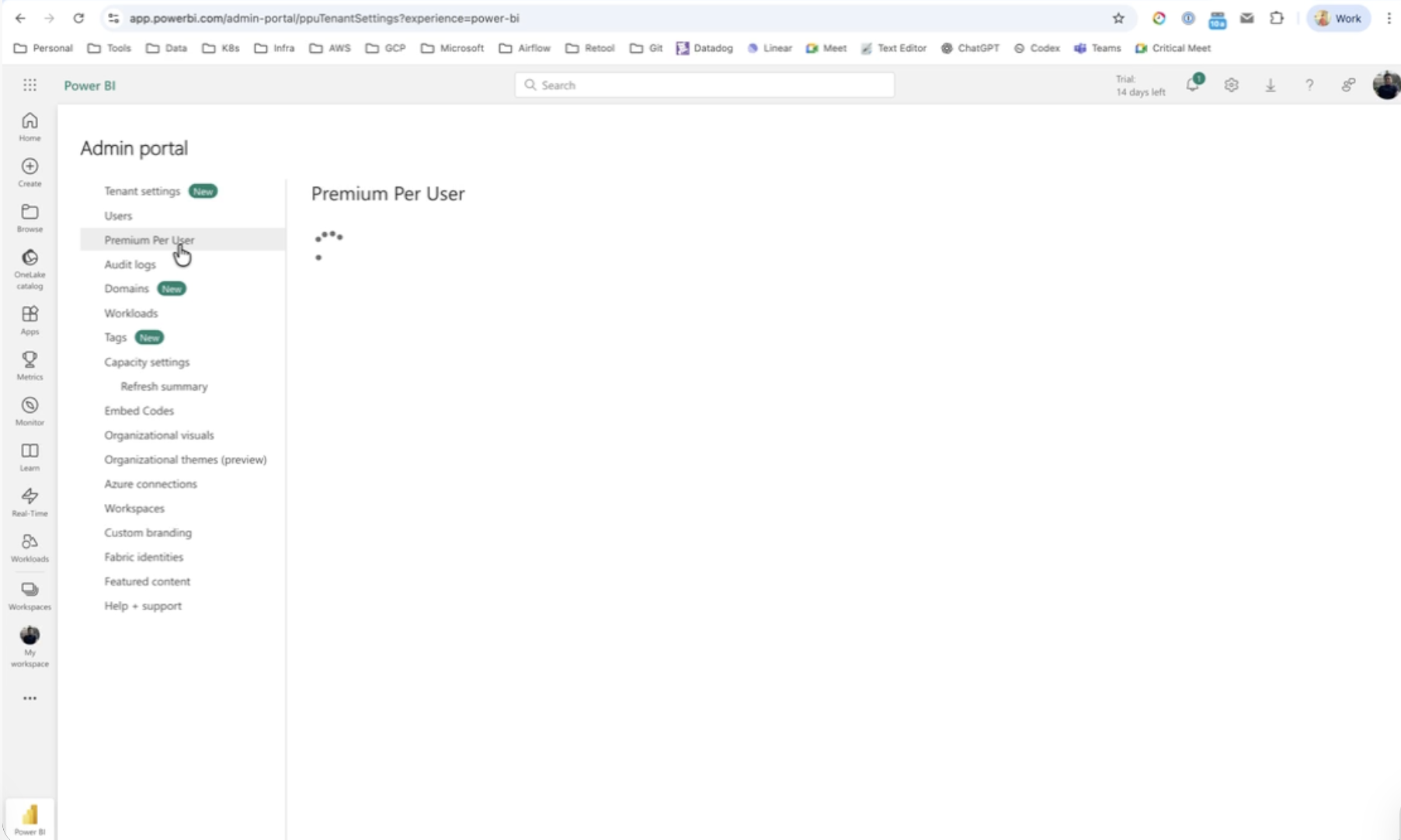
* A Power BI Premium Per User (PPU) license, or Premium or Fabric capacity, on the workspace. This is required for the Execute Queries API the integration uses.
* Admin access to the Power BI workspace you want Drivetrain to read.
## Registering an app in Microsoft Entra ID
This app registration is the service principal Drivetrain authenticates with.
### Step 1: Create the app registration
To create the app registration:
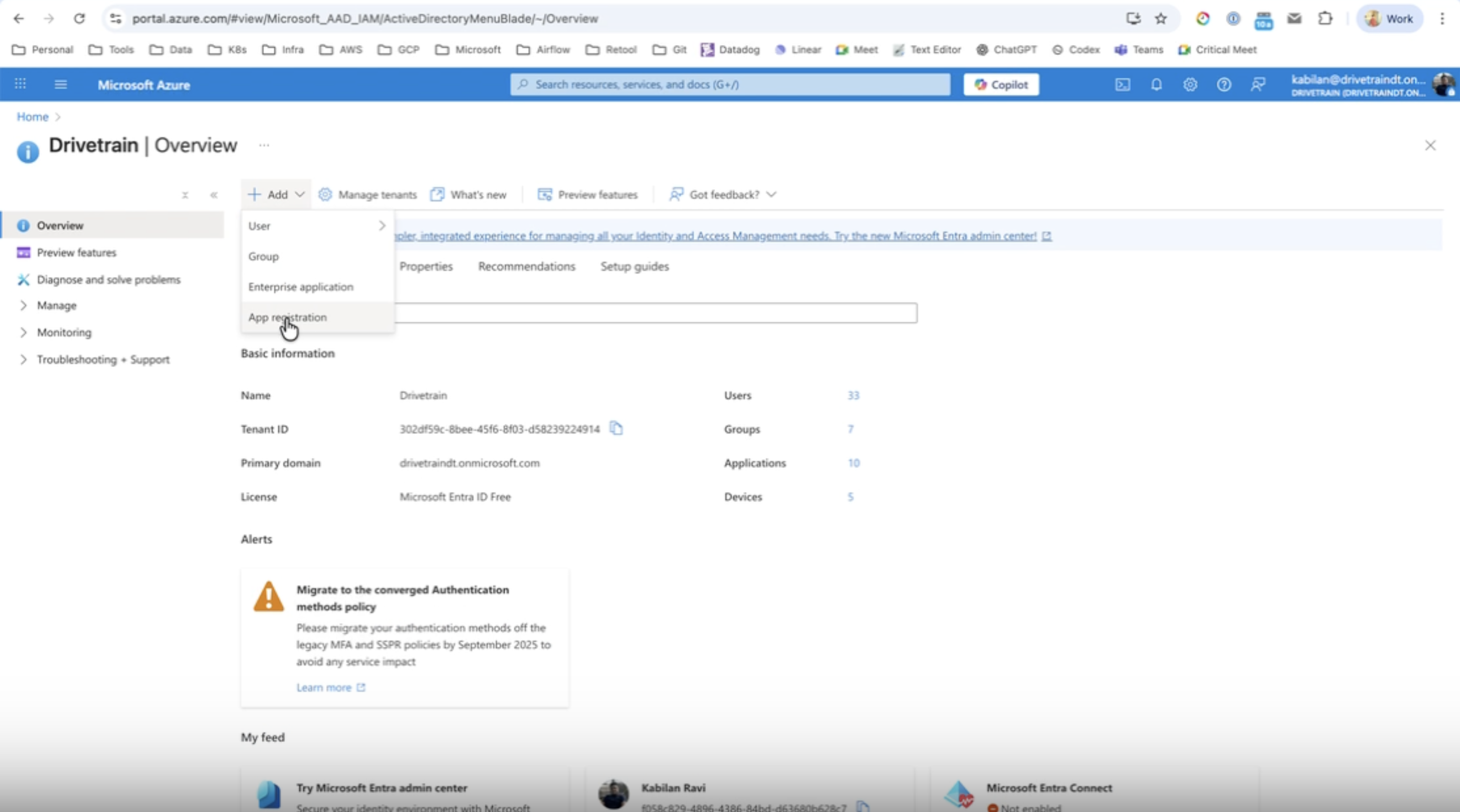
1. Sign in to the Azure portal at [portal.azure.com](https://portal.azure.com).
2. Go to **Microsoft Entra ID → App registrations → New registration**.
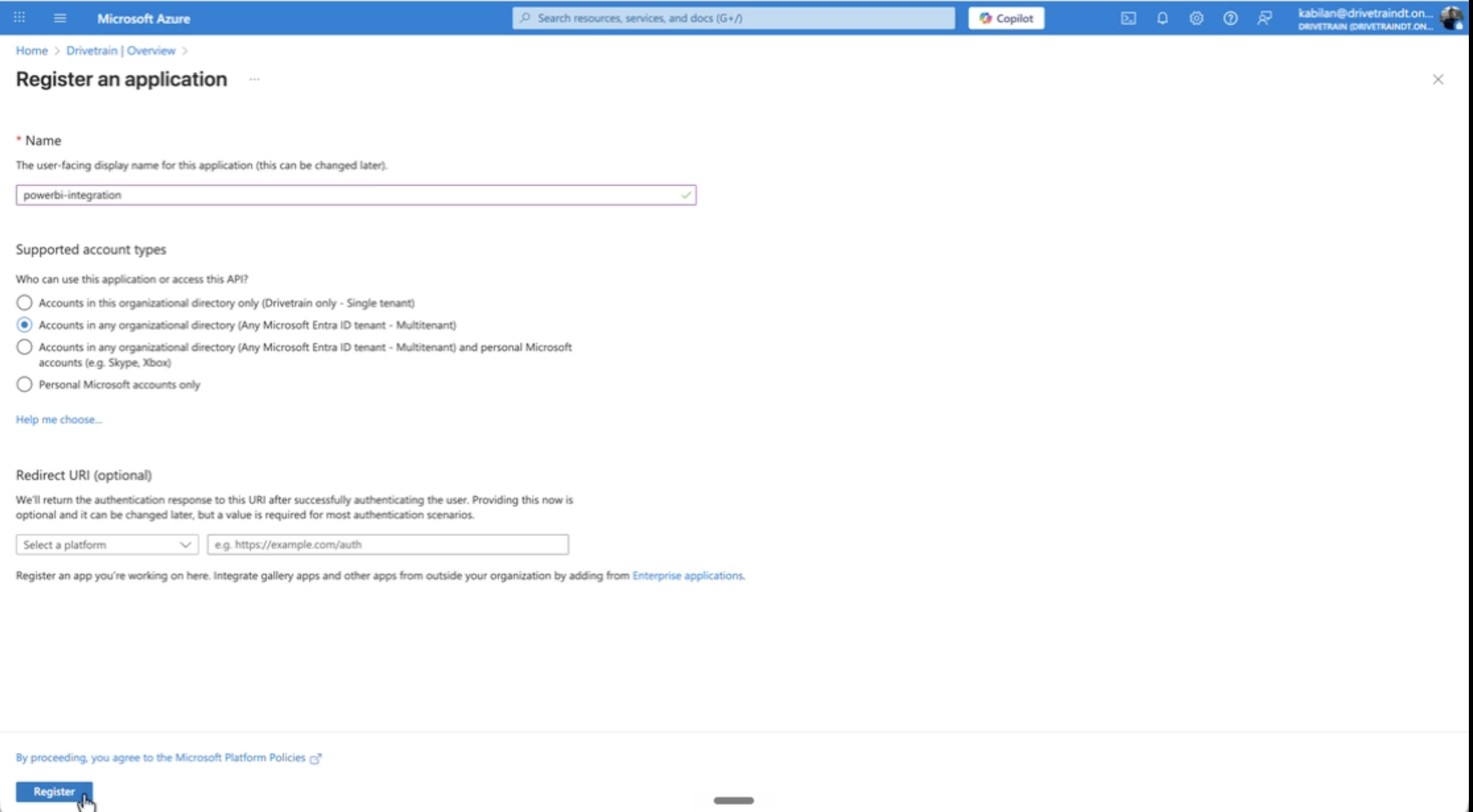
3. Enter a name, for example "Drivetrain BI Integration".
4. Under **Supported account types**, select **Accounts in any organizational directory (Multitenant)**.
5. Click **Register**. The app's **Overview** page opens.
### Step 2: Copy the Client ID and Tenant ID
On the app's **Overview** page, copy and save these two values in a secure document. You'll share them with Drivetrain:
* Application (client) ID
* Directory (tenant) ID
### Step 3: Add Power BI API permissions
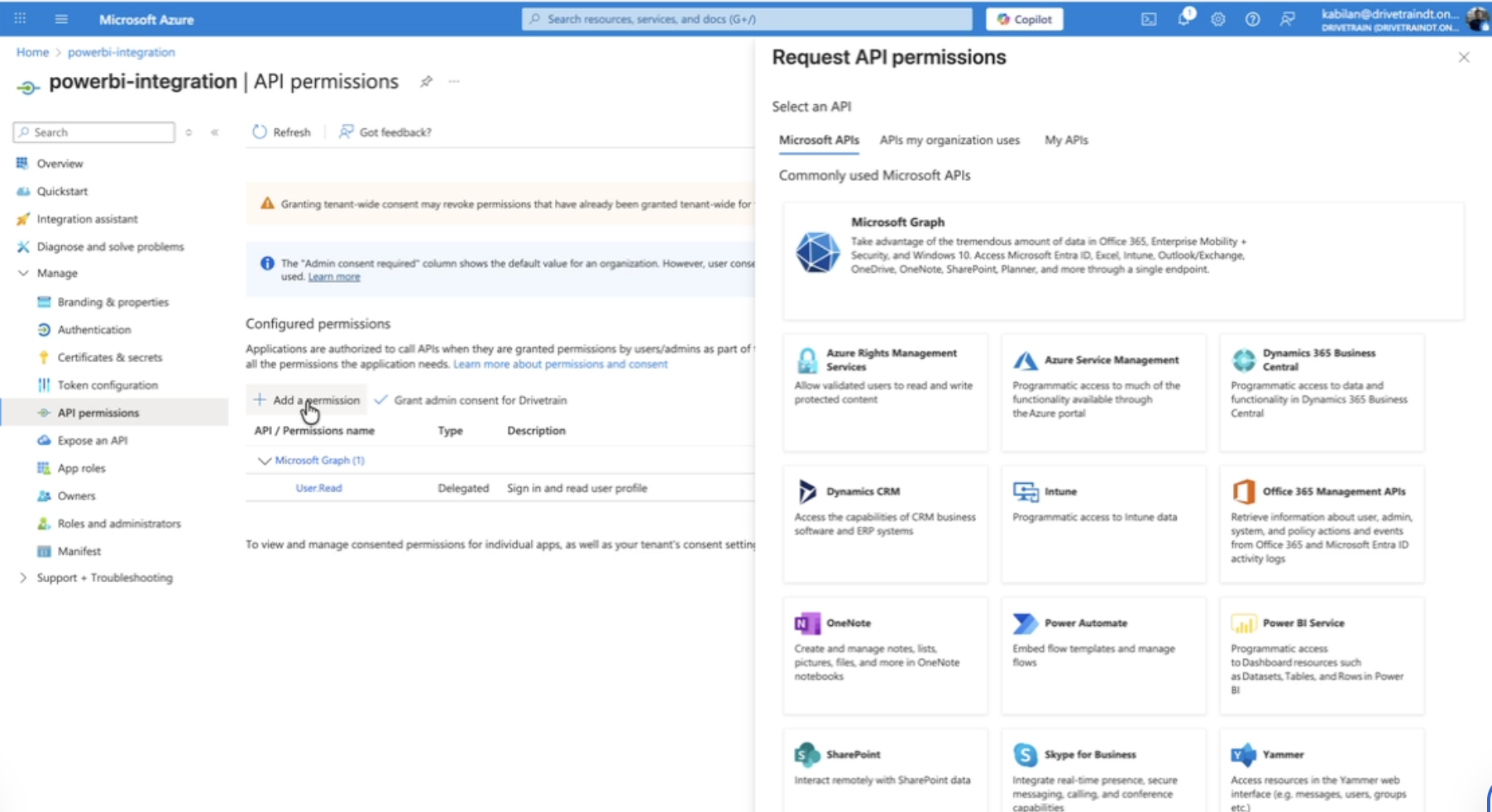
1. In the app, go to **API permissions**.
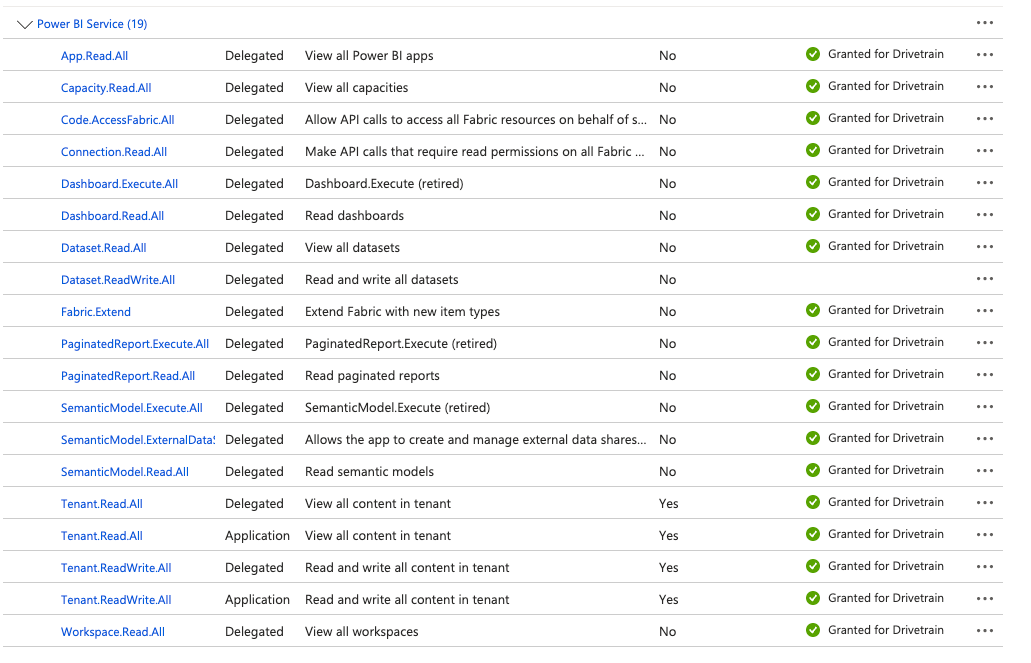
2. Click **Add a permission → Power BI Service** and add the required Delegated permissions.
3. Click **Add a permission → Power BI Service** again and add the required Application permissions.
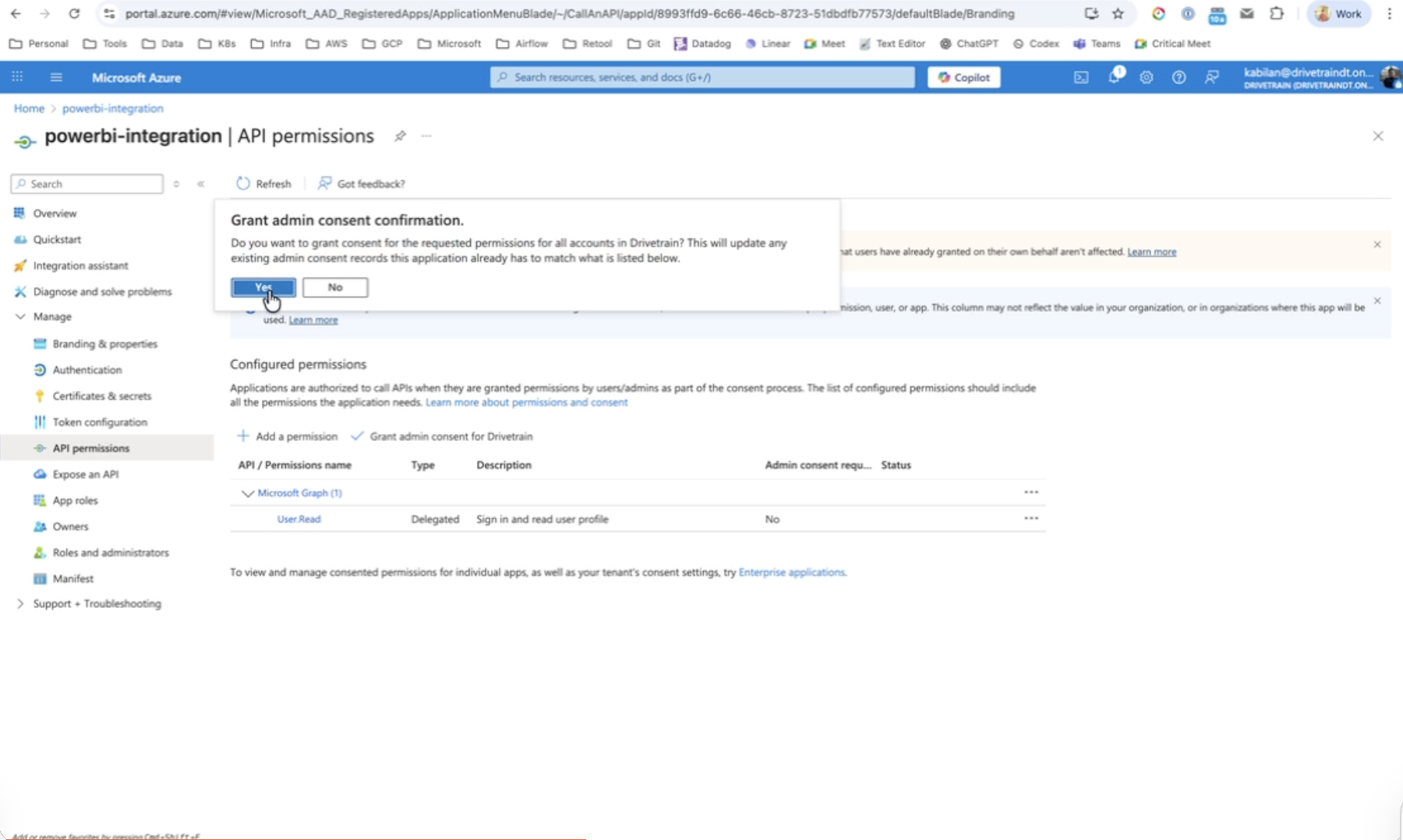
4. Click **Grant admin consent for {your organization}**, then click **Yes** to confirm. Every permission shows a green **Granted** status.
### Step 4: Create a client secret
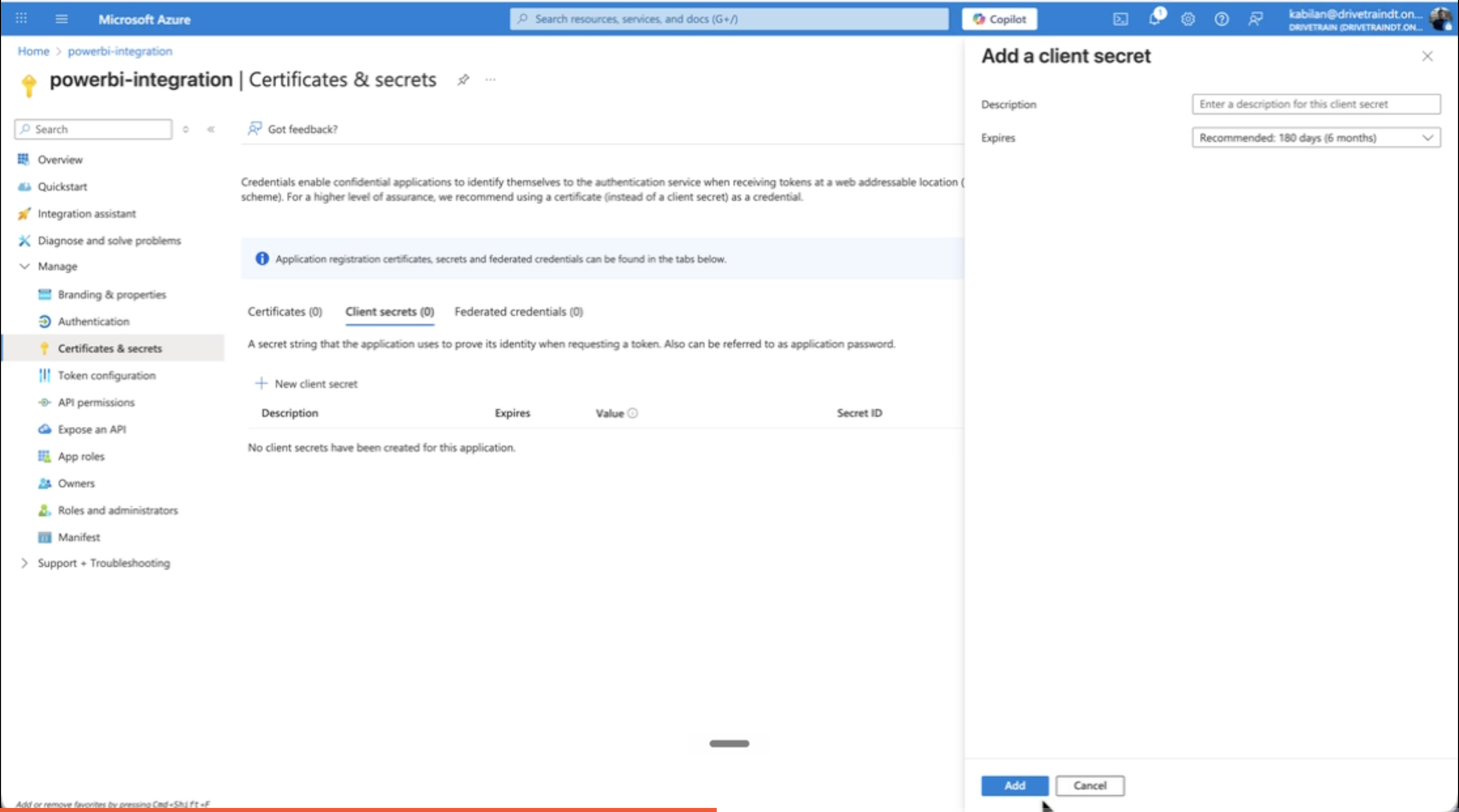
1. Go to **Certificates & secrets → New client secret**.
2. Enter a description and choose an expiry.
3. Click **Add**.
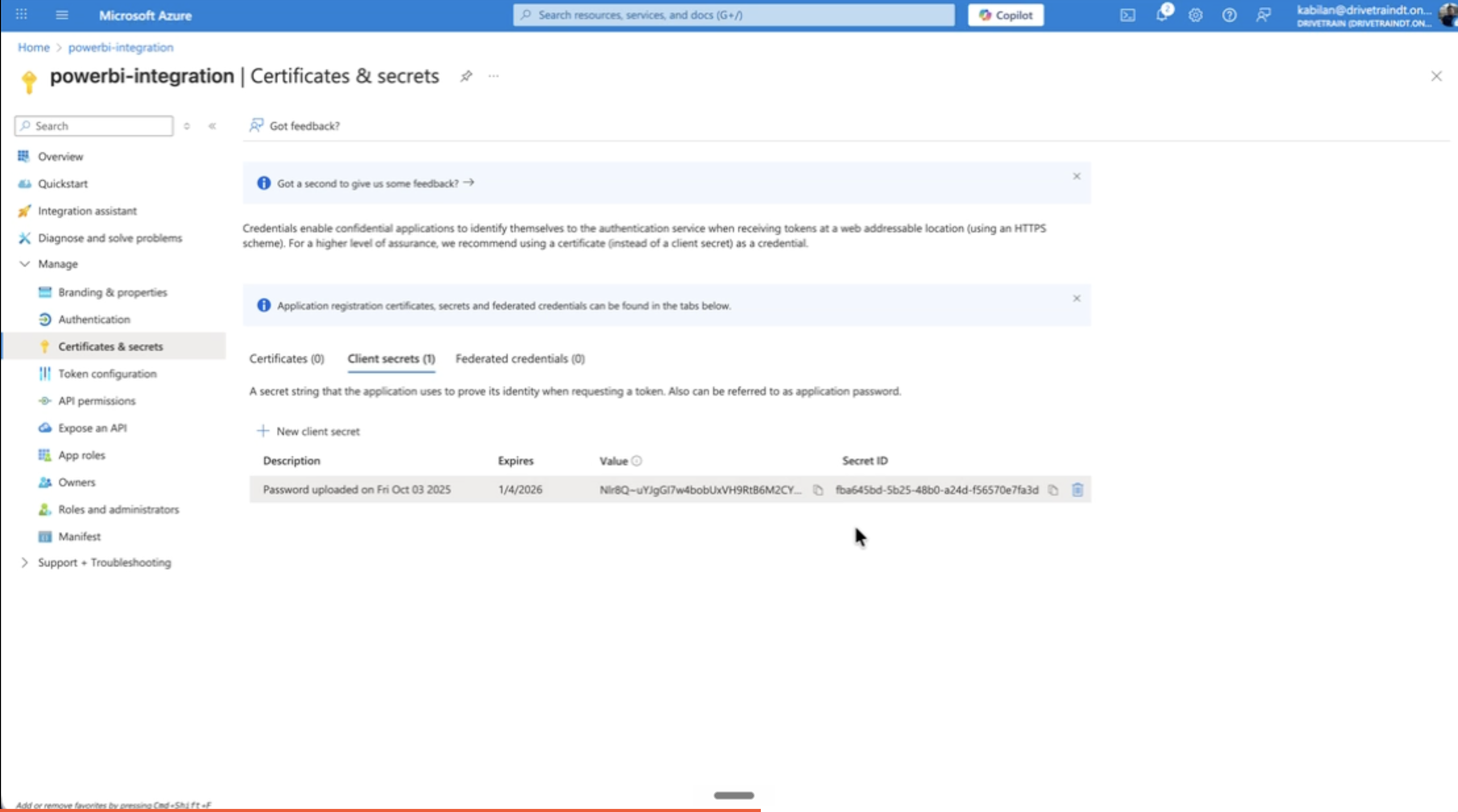
4. Copy the secret's **Value**, not the Secret ID, and store it securely.
**Important:** The secret **Value** is shown only once. If you navigate away or refresh the page, it disappears and you have to create a new one.
You now have the three service principal credentials: Client ID, Tenant ID, and Client Secret.
## Enabling Power BI tenant settings
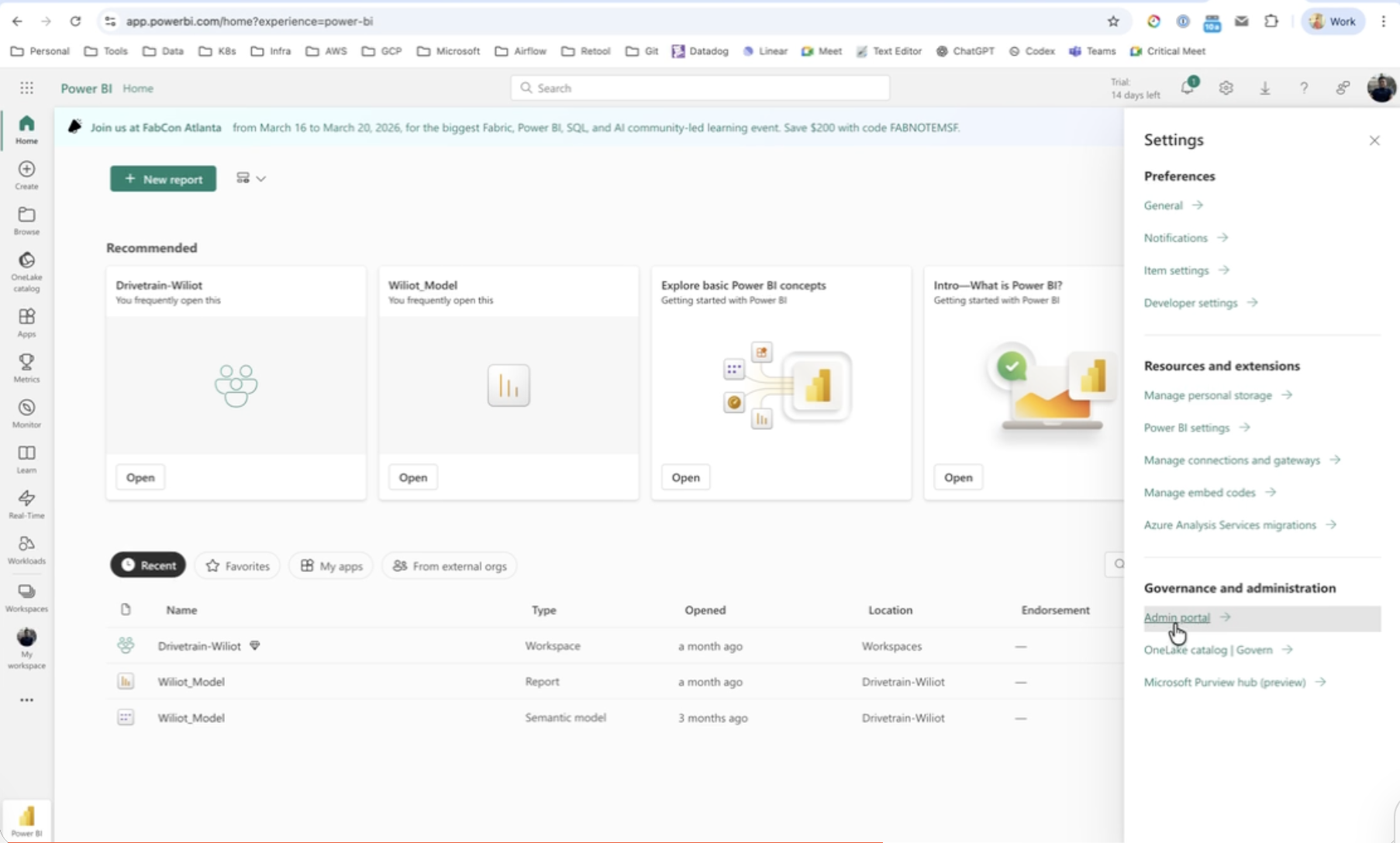
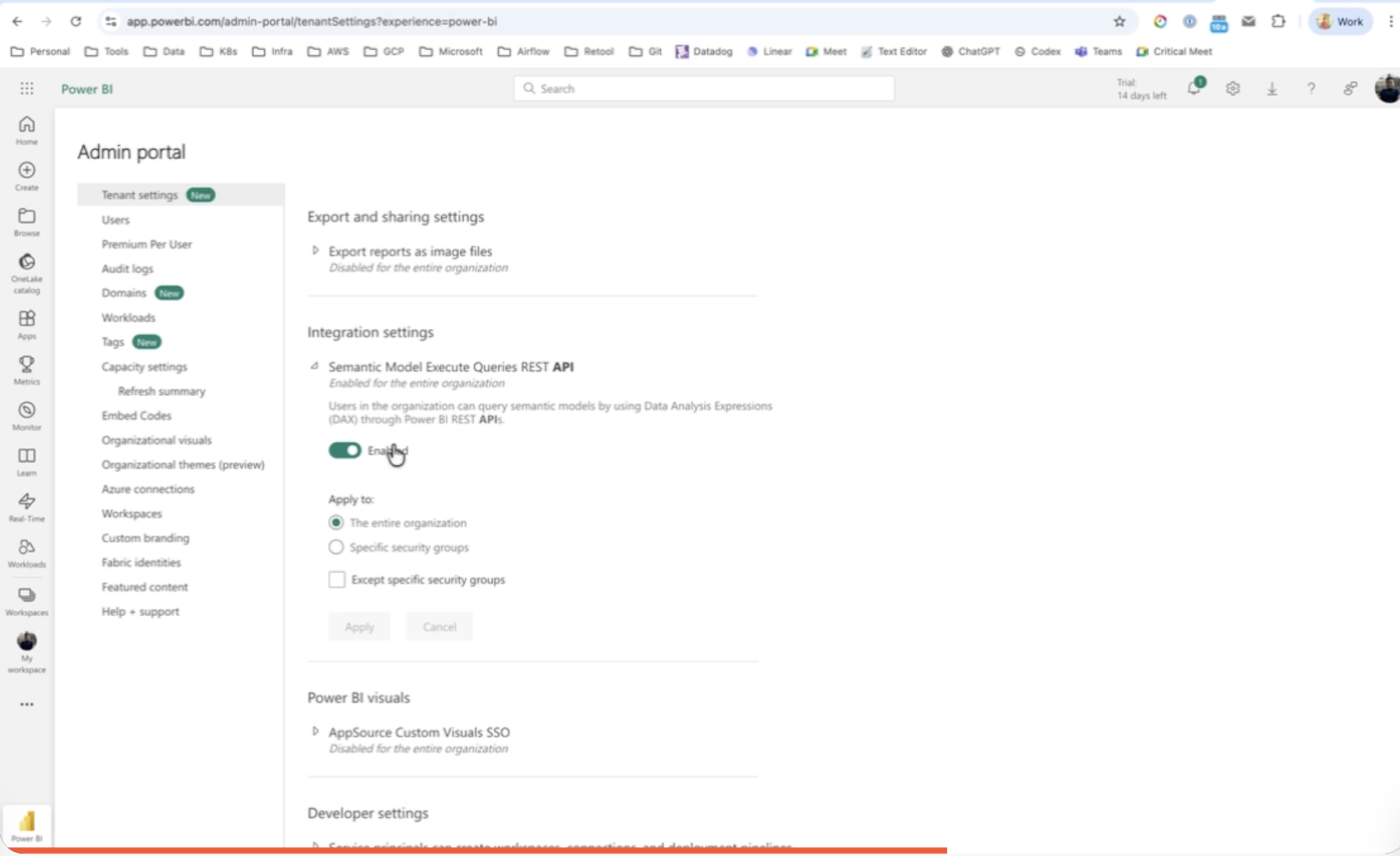
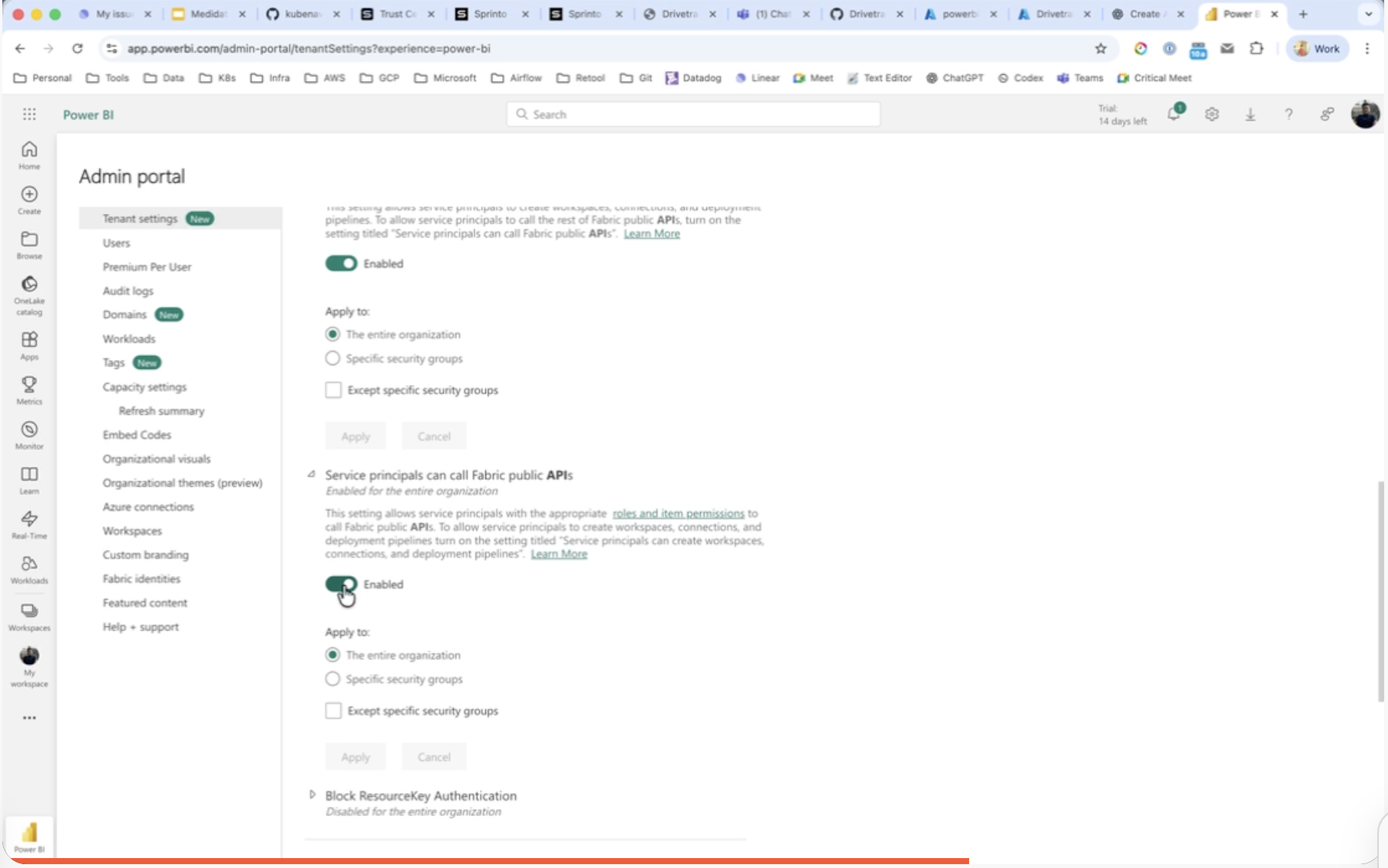
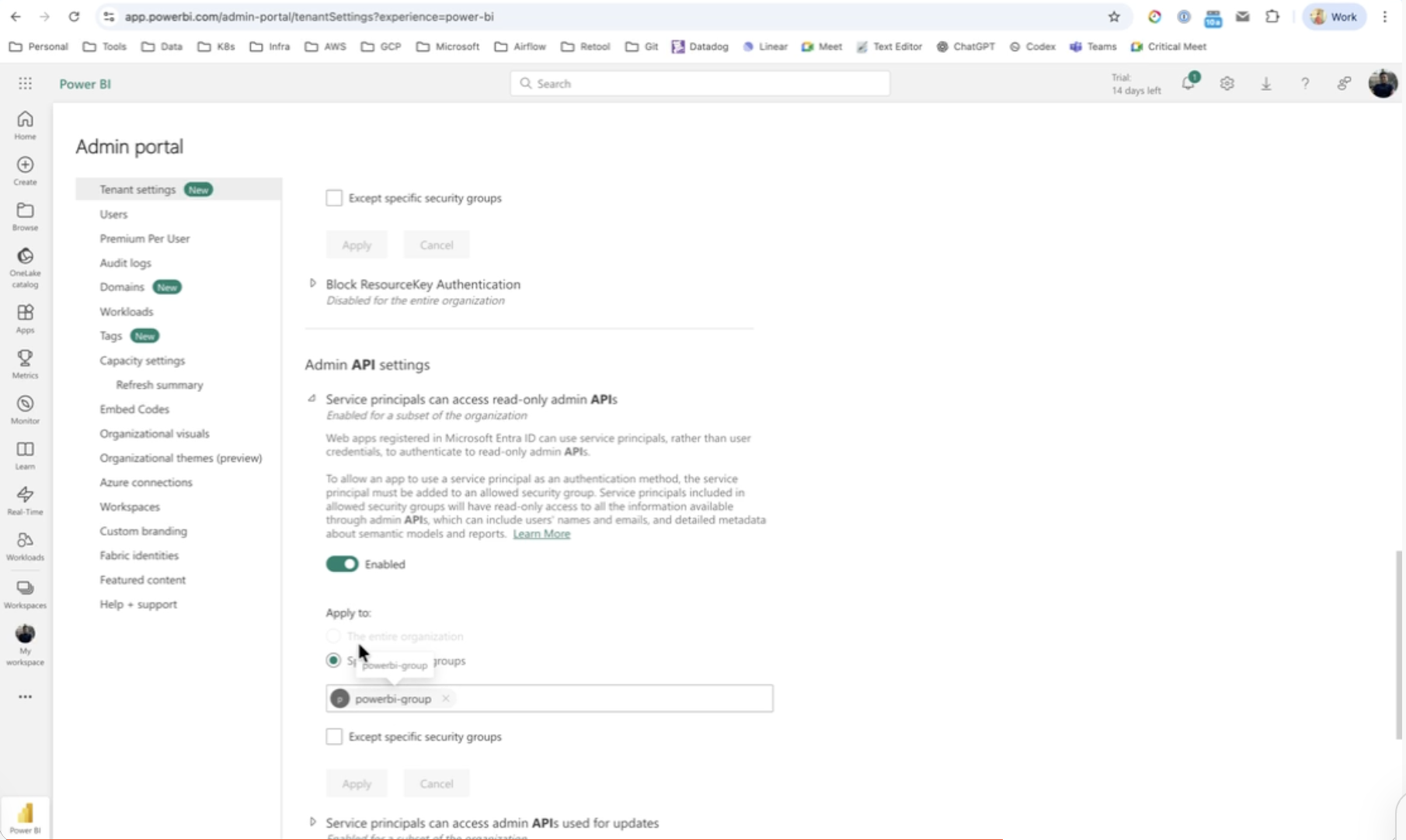
You must be a Power BI or Fabric administrator for this section. In Power BI, go to **Settings (⚙) → Admin portal → Tenant settings**, then enable the following (search each by name):
* **Integration settings → Dataset Execute Queries REST API**: enable, applied to the entire organization or to a security group that contains the app.
* **Developer settings → Allow service principals to use Power BI APIs**: enable.
* **Admin API settings → Service principals can access read-only admin APIs**: enable. This lets Drivetrain read workspace metadata.
* Optional: **Enhance admin APIs responses with detailed metadata**.
* Optional: **Enhance admin APIs responses with DAX and mashup expressions**.
**Tip:** You can scope each setting to a specific security group instead of the whole organization. If you do, add the service principal to that group.
**Important:** The workspace must be on Premium Per User (PPU), or Premium or Fabric capacity. Without it, the Execute Queries API doesn't work.
## Granting the service principal access to your workspace
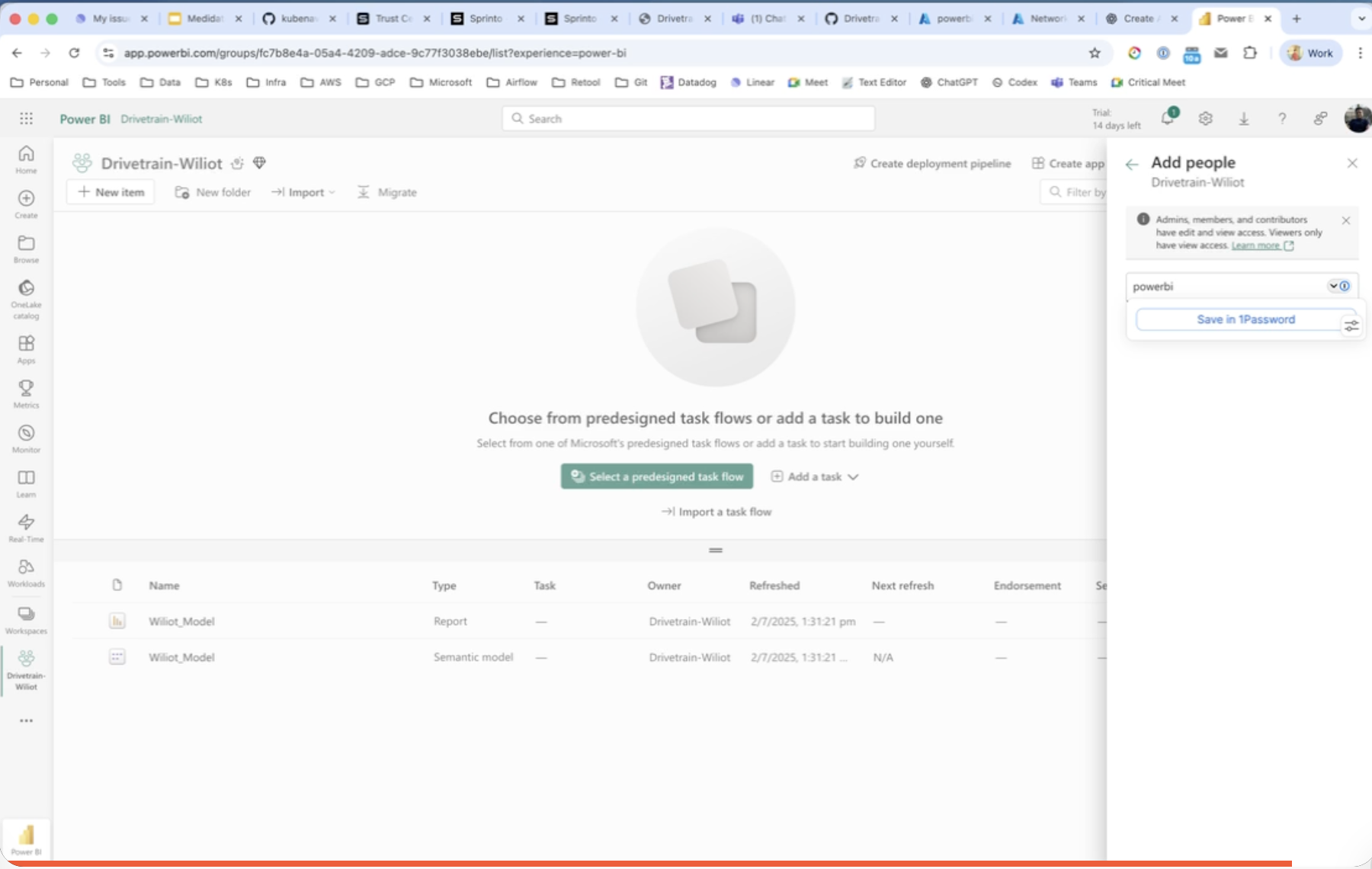
1. Open the Power BI workspace you want Drivetrain to read.
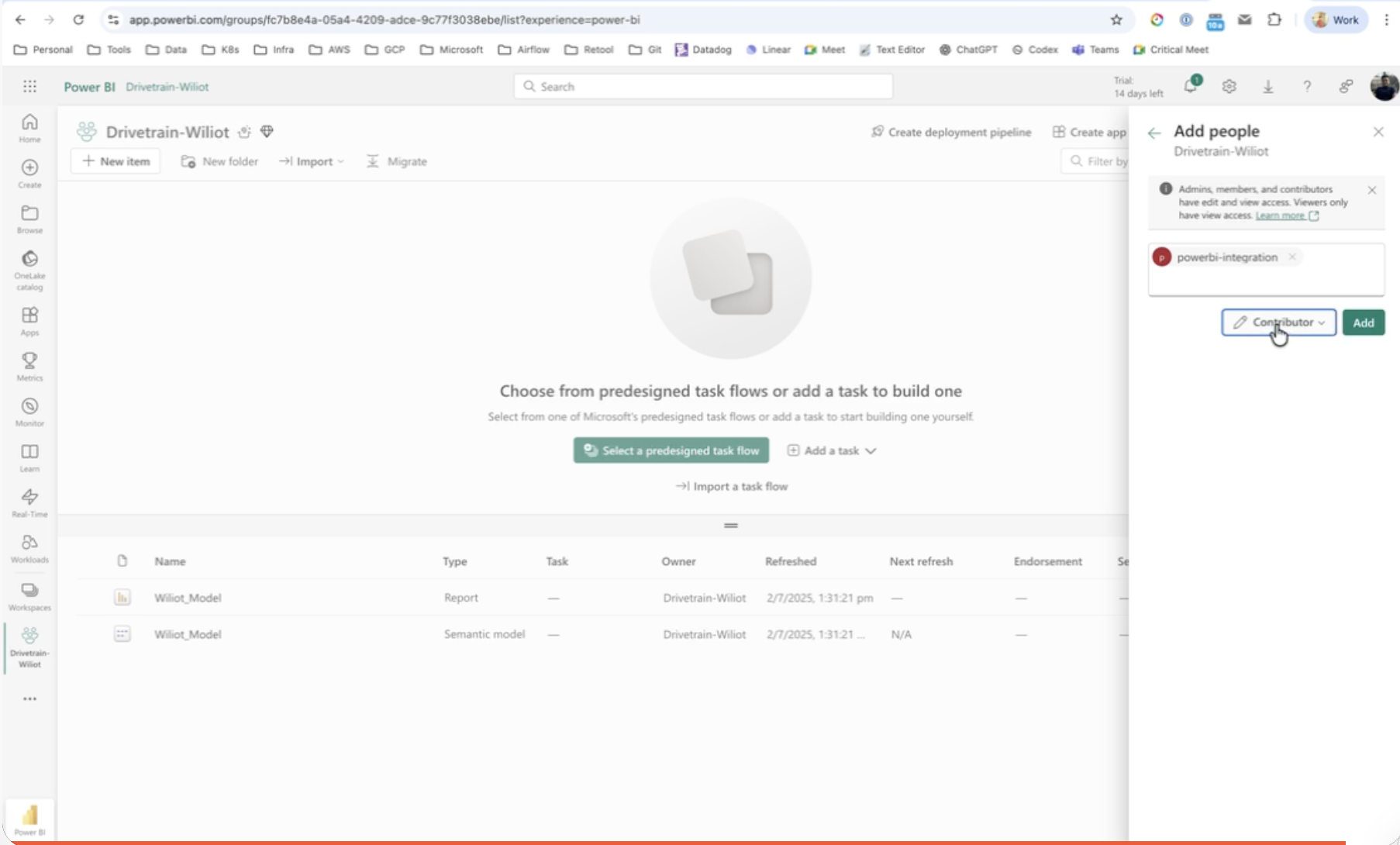
2. Click **Manage access → Add people or groups**.
3. Search for your app registration by name (for example, "Drivetrain BI Integration") and select it.
4. Set the role to **Contributor**. This is required so the service principal can run queries. Click **Add**.
## Sharing credentials with Drivetrain
Share the following with your Drivetrain customer success manager, through a secure channel such as a password manager or an encrypted document:
* Client ID
* Tenant ID
* Client Secret
* The Power BI workspace name(s) you want Drivetrain to sync
## What happens next
* Drivetrain validates the credentials and workspace access.
* Drivetrain configures the sync based on the enabled permissions.
* You're notified once the integration is live, and your Power BI data becomes available across Drivetrain.
**Note:** If you have questions or run into issues during setup, contact your customer success manager.
---
# Agent Instructions
This documentation is published with GitBook. GitBook is the documentation platform designed so that both humans and AI agents can read, navigate, and reason over technical content effectively. Learn more at gitbook.com.
## Querying This Documentation
If you need additional information that is not directly available in this page, you can query the documentation dynamically by asking a question.
Perform an HTTP GET request on the current page URL with the `ask` query parameter, and the optional `goal` query parameter:
```
GET https://integrations.drivetrain.ai/integration-guide/readme/bi/integrating-with-power-bi.md?ask=&goal=
```
`ask` is the immediate question: it should be specific, self-contained, and written in natural language.
`goal` is optional and describes the broader end goal you are ultimately trying to accomplish on behalf of the user. GitBook uses it to tailor the answer towards what is most useful for that goal.
The response will contain a direct answer to the question and relevant excerpts and sources from the documentation.
Use this mechanism when the answer is not explicitly present in the current page, you need clarification or additional context, or you want to retrieve related documentation sections.