> For the complete documentation index, see [llms.txt](https://integrations.drivetrain.ai/llms.txt). Markdown versions of documentation pages are available by appending `.md` to page URLs; this page is available as [Markdown](https://integrations.drivetrain.ai/integration-guide/readme/hris-and-ats/integrating-with-keka-hr.md).
# Integrating with Keka HR
Connect Keka HR to Drivetrain and import employee data into financial planning models. Covers token generation, permission setup, and completing the sync.
[Prerequisites](#prerequisites)
[Keka HR Setup](#keka-hr-setup)\
[Locating and Generating New API Keys](#locating-and-generating-new-api-keys)
[Drivetrain Setup](#drivetrain-setup)\
[Setting up Keka HR Integration](#setting-up-keka-hr-integration)
## Prerequisites
To connect Keka HR to Drivetrain, you need:
* An active Keka HR account
* Global-Admin privileges on Keka HR
* Admin privileges in Drivetrain
## Keka HR Setup
Drivetrain supports in-built integration with Keka HR. You would need to generate and enter API Keys from an account with administrator access to get started.
{% hint style="info" %}
Please note Keka's API access is currently in a closed beta phase and requires your account to include the API & Webhooks Add-On, which may have associated costs. Please reach out to to inquire about the status of this add-on with your account if it is not already enabled.
{% endhint %}
### Locating and Generating New API Keys
1. Navigate to **Settings** by selecting the gear icon in the upper left-hand corner of the page.
2. Under **Integrations and Automation** navigate to the **API Access** tab.
3. Enable API Access if you have not yet done so.
4. Copy the **Client Id** and **Client Secret** as it will be displayed only once, and they are mandatory for accessing the API.
5. Create an API Key by selecting the **Create key** button, enter the name as "Drivetrain Integration" and select an expiry date (preferably a year or more from the day you are creating).
6. Select the necessary scopes you need for the implementation and copy the **API key** and store it in a secure document along with Client ID and Client Secret.
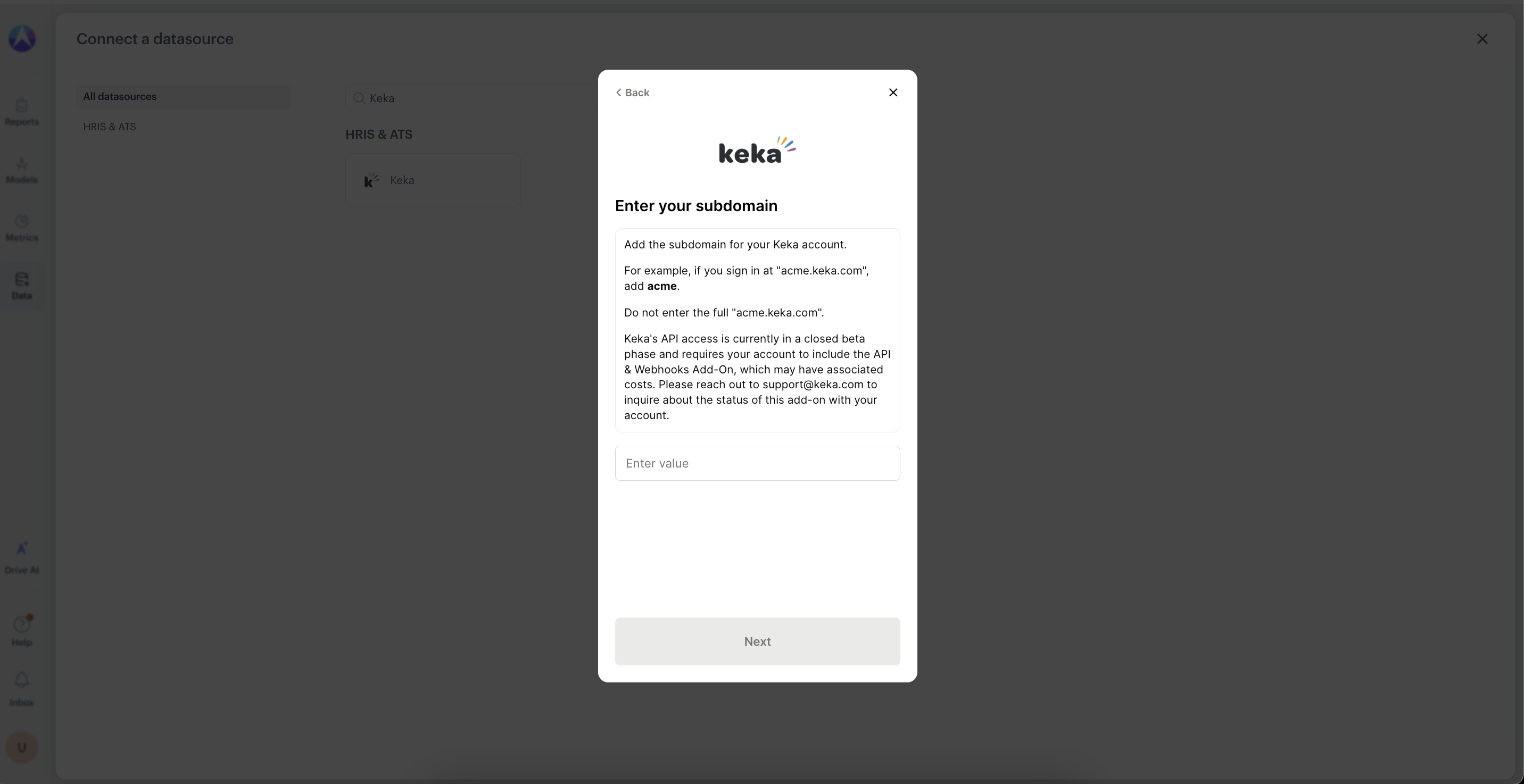
7. Get the subdomain of your Keka HR account, for example if you login keka at mycompany.keka.com then your subdomain is "**mycompany**"
{% hint style="info" %}
Please note the following details are required for setting up Keka HR:
1. Client ID
2. Client Secret
3. API Key
4. Subdomain
{% endhint %}
## Drivetrain Setup
### Setting up Keka HR Integration
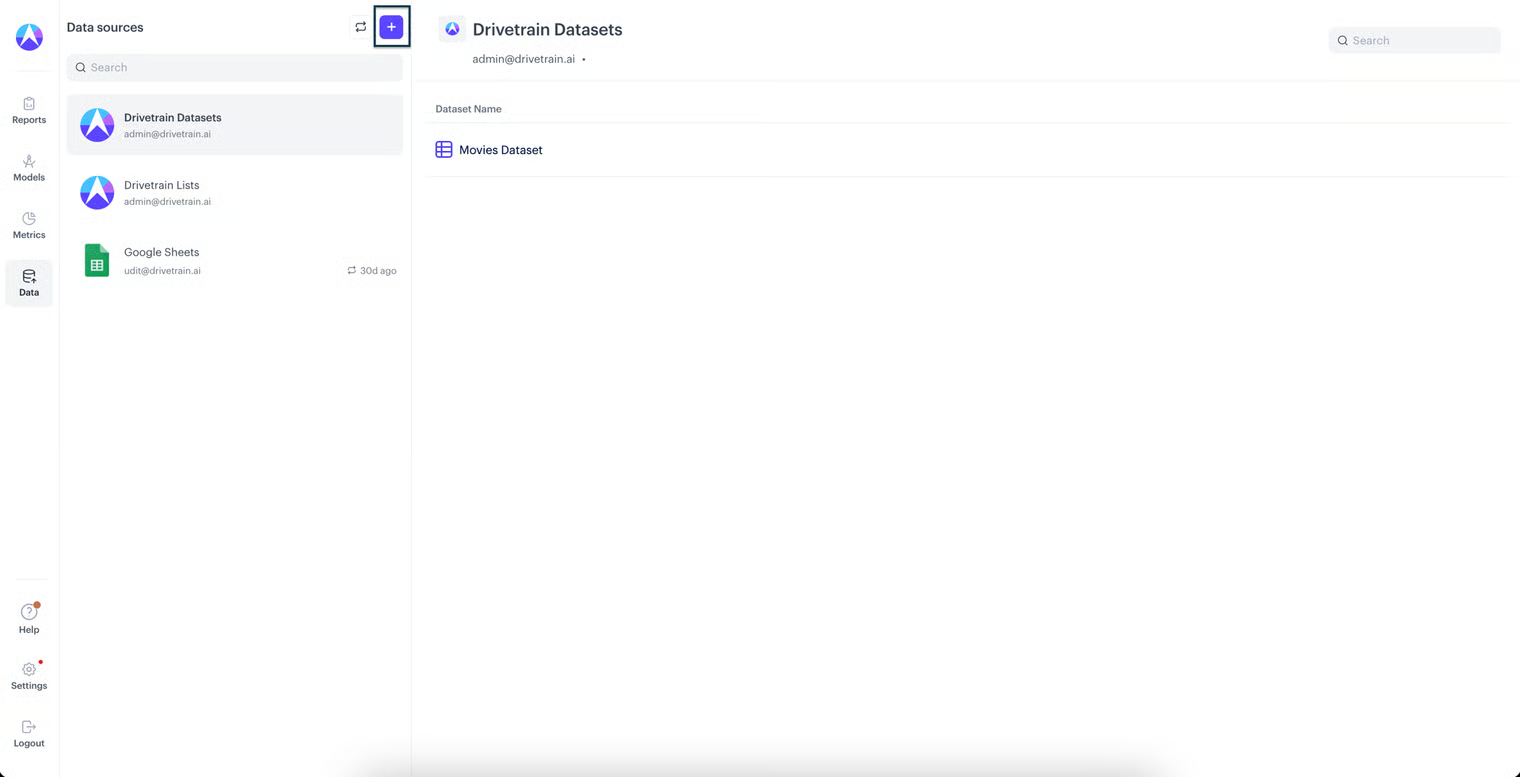
1. Go to Drivetrain's data page and Click on **+** button on top left corner
2. Select the Keka HR connector from the list of integrations and enter the **Subdomain** of your account and click **Next**
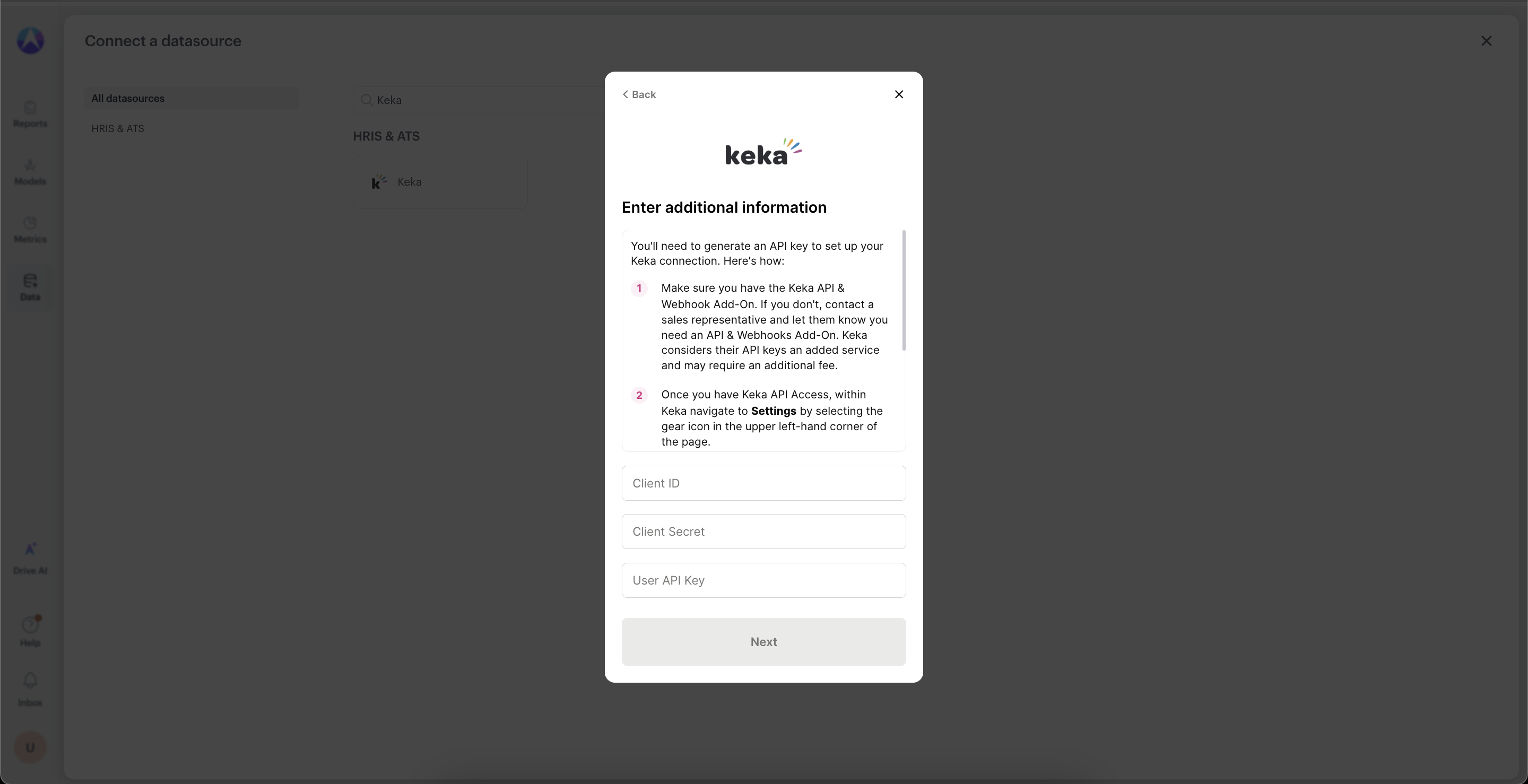
3. Enter Client ID, Client Secret and API key generated from previous steps and click **Next**
4. After a successful authentication, you will be directed back to Drivetrain's **Connected Integrations** page. Once the data sync is completed, you will be able to see the Keka HR Datasets.
---
# Agent Instructions
This documentation is published with GitBook. GitBook is the documentation platform designed so that both humans and AI agents can read, navigate, and reason over technical content effectively. Learn more at gitbook.com.
## Querying This Documentation
If you need additional information that is not directly available in this page, you can query the documentation by asking a question.
Perform an HTTP GET request on the following URL with the `ask` and `goal` query parameters:
```
GET https://integrations.drivetrain.ai/integration-guide/readme/hris-and-ats/integrating-with-keka-hr.md?ask=&goal=
```
`ask` is the immediate question: it should be specific, self-contained, and written in natural language.
`goal` is what the user is ultimately trying to achieve, the reason they need the answer. Sharing it helps GitBook give you a better, more relevant answer. A goal is most helpful when it describes the outcome the user wants rather than restating the question. For example, with `ask=how do I create an API token`, a goal like `automate deployments from our CI pipeline` lets GitBook tailor the answer to that use case.
The response will contain a direct answer to the question and relevant excerpts and sources from the documentation.
Use this mechanism when the answer is not explicitly present in the current page, you need clarification or additional context, or you want to retrieve related documentation sections.