> For the complete documentation index, see [llms.txt](https://integrations.drivetrain.ai/llms.txt). Markdown versions of documentation pages are available by appending `.md` to page URLs; this page is available as [Markdown](https://integrations.drivetrain.ai/integration-guide/readme/hris-and-ats/integrating-with-ukg-pro.md).
# Integrating with UKG Pro
Link UKG Pro to Drivetrain and bring enterprise workforce data into your financial models. Covers API credentials and sync setup.
[Prerequisites](#prerequisites)
[UKG Pro Setup](#ukg-pro-setup)\
[Step 1: Find your UKG Pro Customer API Key](#step-1-find-your-ukg-pro-customer-api-key)\
[Step 2: Create your Service Account](#step-2-create-your-service-account)\
[Step 3: Find your UKG Web Service Domain](#step-3-find-your-ukg-web-service-domain)
[Drivetrain Setup](#drivetrain-setup)
## Prerequisites
* An active UKG Pro account.
* Admin privileges on UKG Pro.
* Admin privileges in Drivetrain.
## UKG Pro Setup
Drivetrain connects to UKG Pro via an API key and a Service Account. To create this integration, you need to log in using an admin account to find the API key, create a Service Account with the relevant permissions, and then provide the Web Services URL. This guide will cover the steps for the above requirements.
### Step 1: Find your UKG Pro Customer API Key
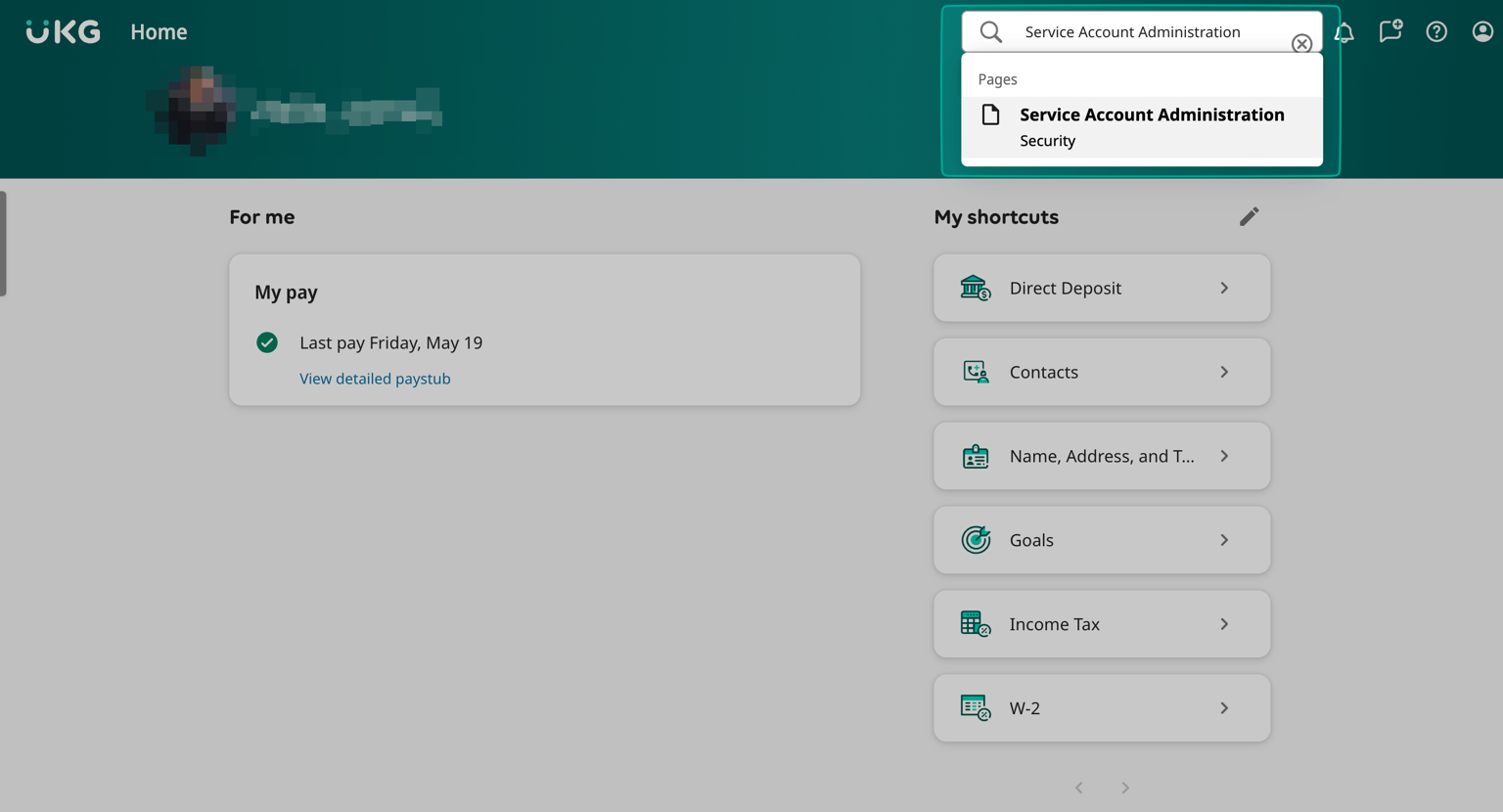
1. Log in to your UKG pro account and search “**Service Account Administration**” on the top right.
2. Copy the Customer API Key from under the header and copy it in a secure document.
### Step 2: Create your Service Account
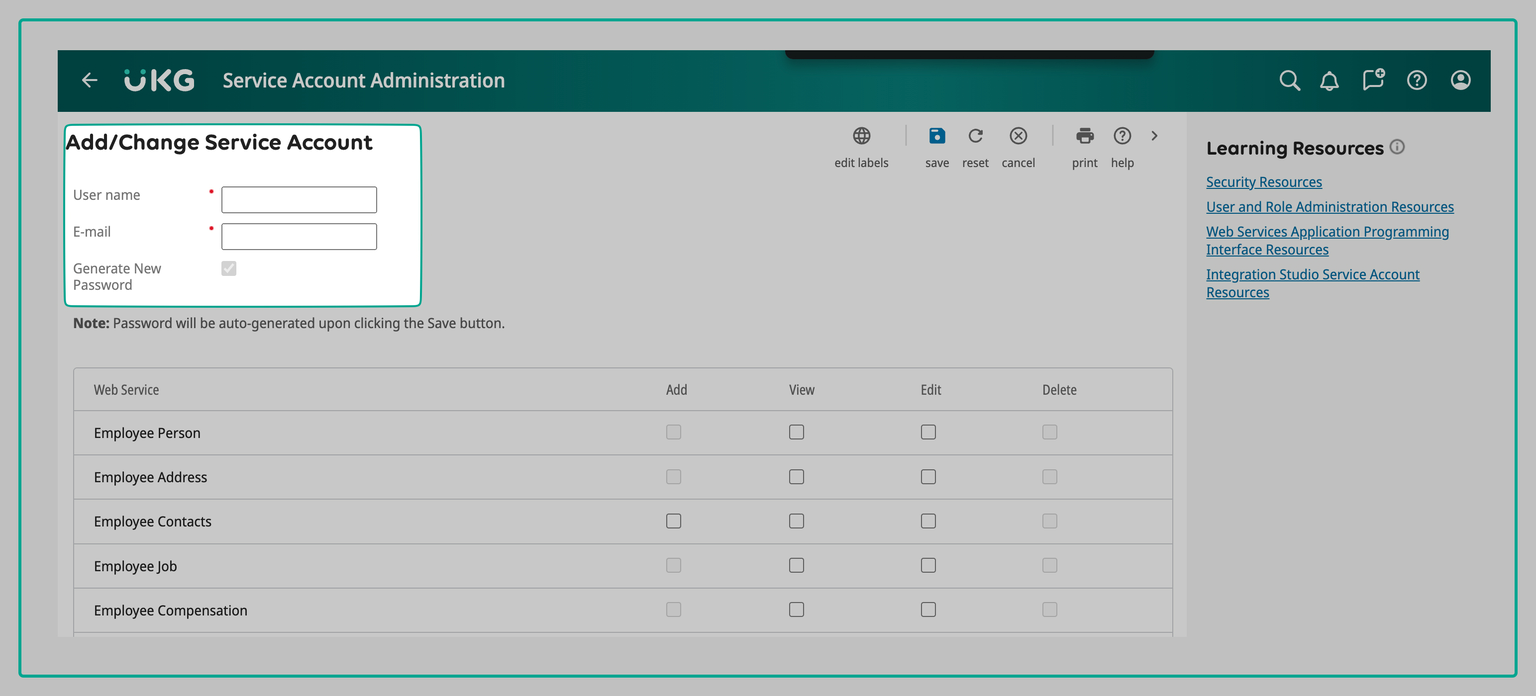
1. On the Service Account Administration Page, Click “**+ add**” on the top rig
2. Enter the username as “Drivetrain Integration” and reach out to your CSM for email.
3. Under the Web Services section, enable the relevant permissions. To capture complete employee and payroll-related information, refer to the permissions listed below. Note that the "Employee Person Details" permission is mandatory.
* Employee Person Details \[This is required for integration, Permissions Needed: View]
* Employee Pay Statement \[Permissions Needed: View]
* Employee Employment Information \[Permissions Needed: View]
* PTO Plan Integration \[Permissions Needed: Add & View]
* Company Configuration Integration \[Permissions Needed: Add & View]
* Payroll Integration \[Permissions Needed: Add & View]
* Personnel Integration \[Permissions Needed: Add & View]
* Employee Job History Details \[Permissions Needed: View]
* Employee Compensation Details \[Permissions Needed: View]
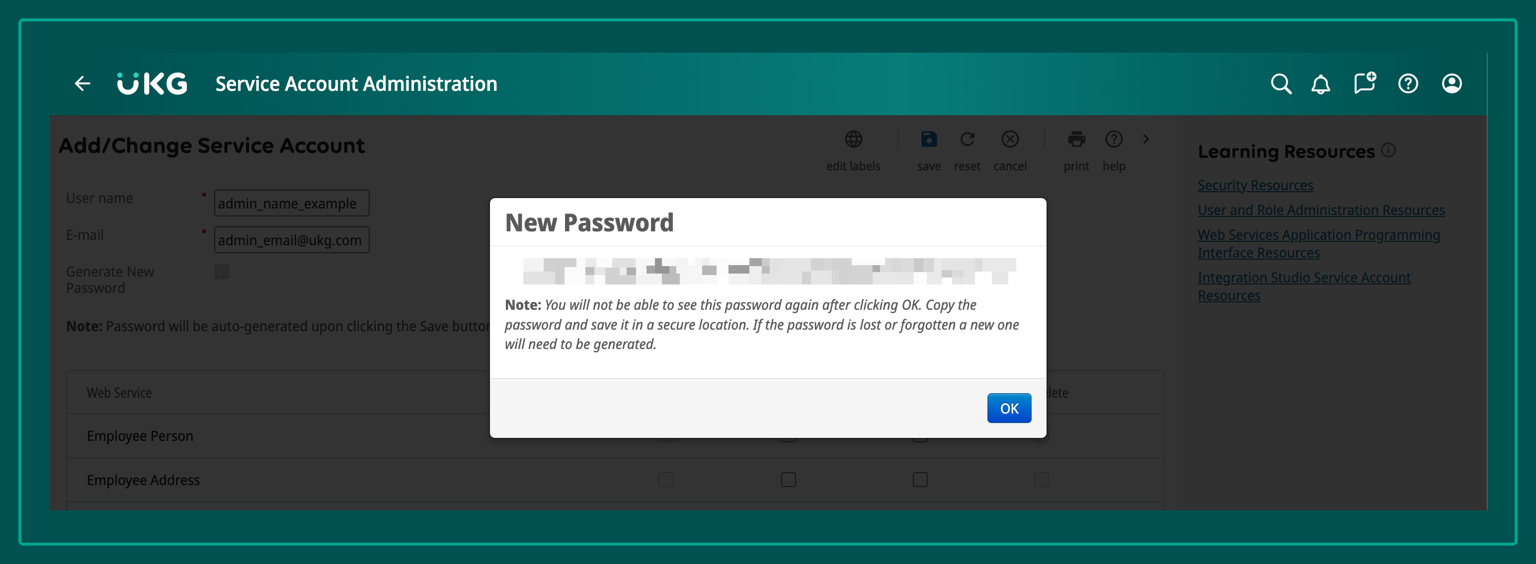
4. Click on Save on top right. Your new password will pop-up, save the password in a secure document along with the API key found in Step 1
### Step 3: Find your UKG Web Service Domain
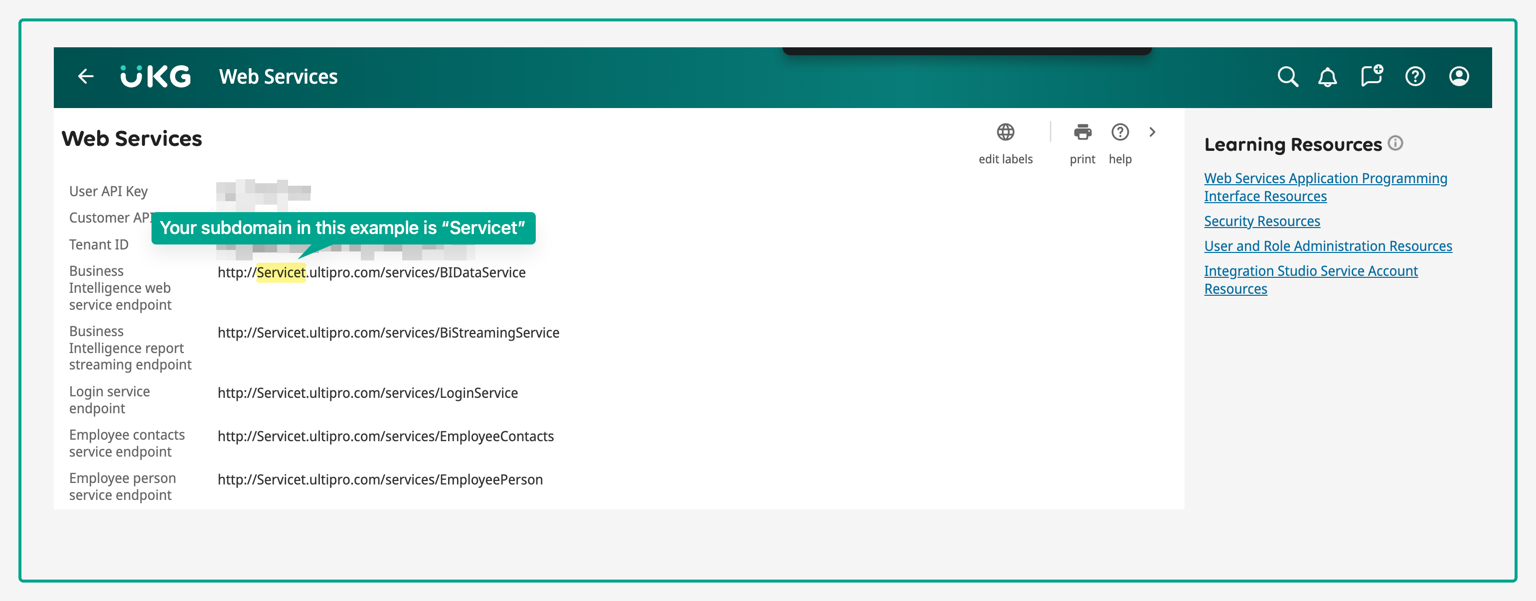
1. Go back to home, click on Search Bar and search for “**Web Services**”.
2. Copy any one of the URL present on the page and add in the same document where you stored password and API key. As an example below your URL may look something like this: [http://Servicet.ultipro.com/services/BIDataService](http://servicet.ultipro.com/services/BIDataService)
***
## Drivetrain Setup
After completing the UKG Pro setup above, connect UKG Pro as a data source in your Drivetrain instance. You must be a **Drivetrain administrator** to add a data source.
### Step 1: Go to the Data page and add a data source
1. Sign in to your Drivetrain instance as an administrator.
2. In the left navigation, click **Data**.
3. At the top of the data sources panel, click the **+** (Add data source) button.
### Step 2: Select the UKG Pro connector
1. In the **Connect a datasource** window, search for **UKG** (or open the **HRIS & ATS** category).
2. Click the **UKG Pro** connector card.
### Step 3: Confirm administrator access
1. The UKG Pro connection window opens with the message **"Administrator role required."**
2. Click **I am an admin** to continue.
### Step 4: Enter your API Key
Paste the **Customer API Key** you acquired from Step 1 of the UKG Pro setup, then click **Next**.
### Step 5: Finish setup
1. Once the credentials are validated, the connection is created and you are returned to the **Data** page.
2. **UKG Pro** now appears in your list of connected data sources and begins syncing.
3. When the sync completes, your UKG Pro data is available across Drivetrain.
{% hint style="info" %}
If you have any questions or run into any issues during setup, please contact your customer success manager for assistance.
{% endhint %}
---
# Agent Instructions
This documentation is published with GitBook. GitBook is the documentation platform designed so that both humans and AI agents can read, navigate, and reason over technical content effectively. Learn more at gitbook.com.
## Querying This Documentation
If you need additional information that is not directly available in this page, you can query the documentation by asking a question.
Perform an HTTP GET request on the following URL with the `ask` and `goal` query parameters:
```
GET https://integrations.drivetrain.ai/integration-guide/readme/hris-and-ats/integrating-with-ukg-pro.md?ask=&goal=
```
`ask` is the immediate question: it should be specific, self-contained, and written in natural language.
`goal` is what the user is ultimately trying to achieve, the reason they need the answer. Sharing it helps GitBook give you a better, more relevant answer. A goal is most helpful when it describes the outcome the user wants rather than restating the question. For example, with `ask=how do I create an API token`, a goal like `automate deployments from our CI pipeline` lets GitBook tailor the answer to that use case.
The response will contain a direct answer to the question and relevant excerpts and sources from the documentation.
Use this mechanism when the answer is not explicitly present in the current page, you need clarification or additional context, or you want to retrieve related documentation sections.