> For the complete documentation index, see [llms.txt](https://integrations.drivetrain.ai/llms.txt). Markdown versions of documentation pages are available by appending `.md` to page URLs; this page is available as [Markdown](https://integrations.drivetrain.ai/integration-guide/readme/hris-and-ats/integrating-with-ukg-ready.md).
# Integrating with UKG Ready
Step-by-step guide to authenticate and connect UKG Ready with Drivetrain.
To authenticate your UKG Ready account, you will need to provide the following information:
* Domain
* Company Short Name
* API Key
* User ID
* Password
This guide will walk you through finding or creating those credentials within UKG Ready.
### Prerequisites
Please ensure you fulfill all the requirements to set up the integration:
* You are an **Administrator** in your company's UKG Ready instance, or someone has shared their access with you.
### Instructions
#### Step 1: Get your domain
1. Find your domain in your UKG Ready sign-in URL. For example, if you sign in at `acme.com/ta/Default.login`, your domain is `acme.com`.
2. Store your domain in a document to be shared with your Drivetrain team.
#### Step 2: Find your company short name
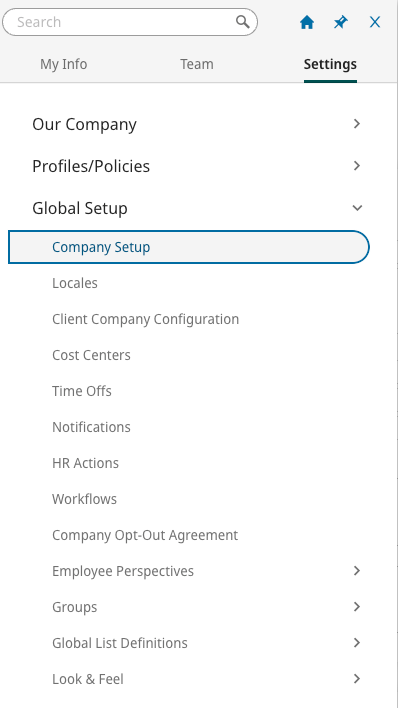
* Log in to your UKG Ready account and open the menu in the upper left. Then, go to your **settings icon** and click **Global Setup**, followed by **Company Setup**.
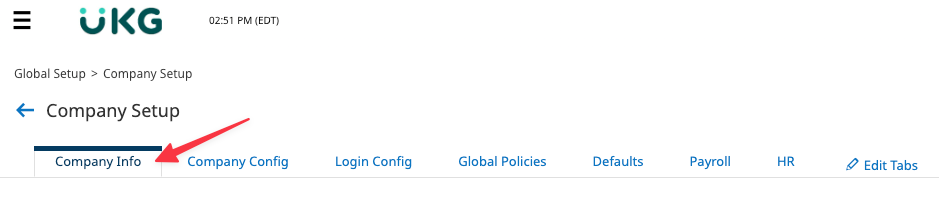
* Open **Company Info**.
* Scroll down to find **Company Short Name** under **Company Address**. Copy your **Company Short Name**.
* Store your **Company Short Name** in the document.
#### Step 3: Find your API key
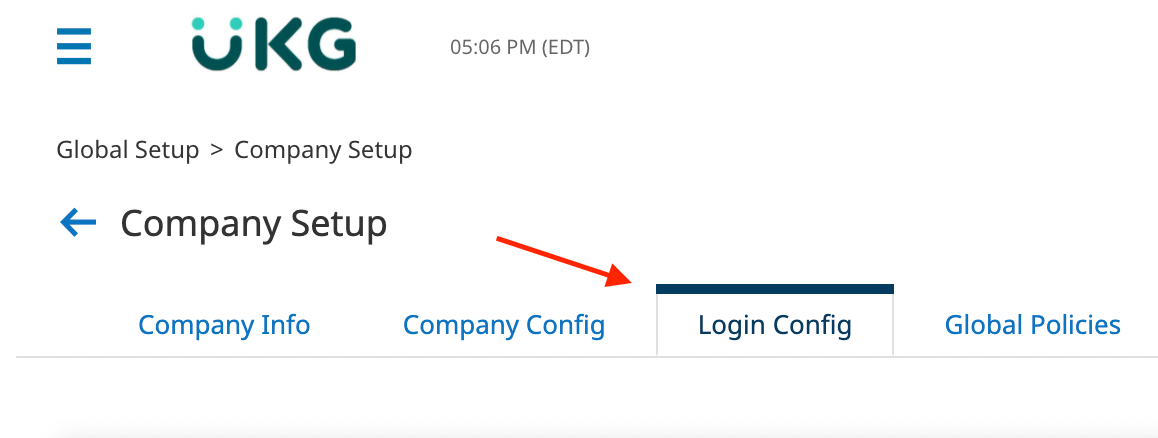
* In your **Company Setup** page, go to **Login Config**.
* Scroll to find **API Keys** and click the **eye icon** to reveal the key. Copy the API key and store it in a secure place.
{% hint style="info" %}
If there is no key, you can click **GENERATE** to create one. If there are existing integrations using this key, **DO NOT click GENERATE**.
{% endhint %}
* Store your **API Key** in a secure document.
#### Step 4: Create a security profile
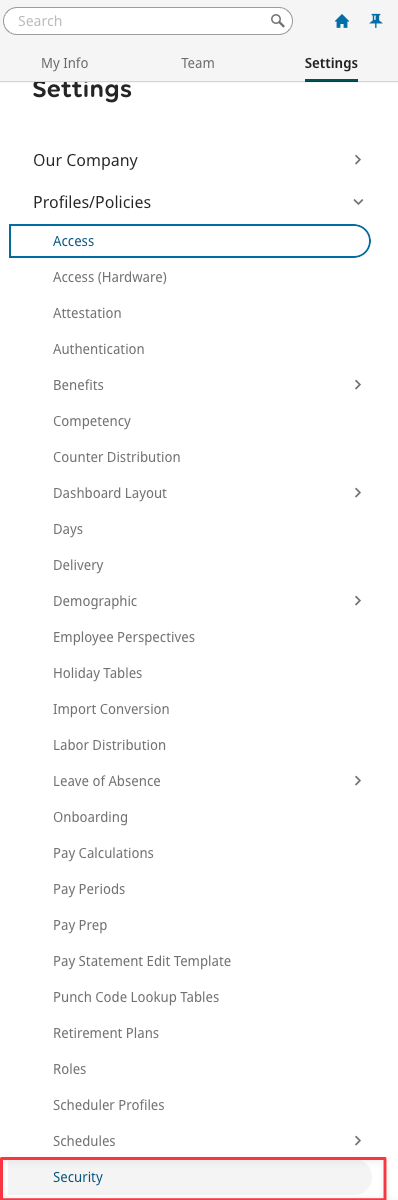
* In your menu on the left, go to **Settings**, **Profiles/Policies**, and then **Security**.
* Click **NEW SECURITY PROFILE** on the upper right-hand side.
* In this profile, make sure all relevant permissions are enabled for the following endpoints.
{% hint style="info" %}
These permissions may be different based on your specific use case.
{% endhint %}
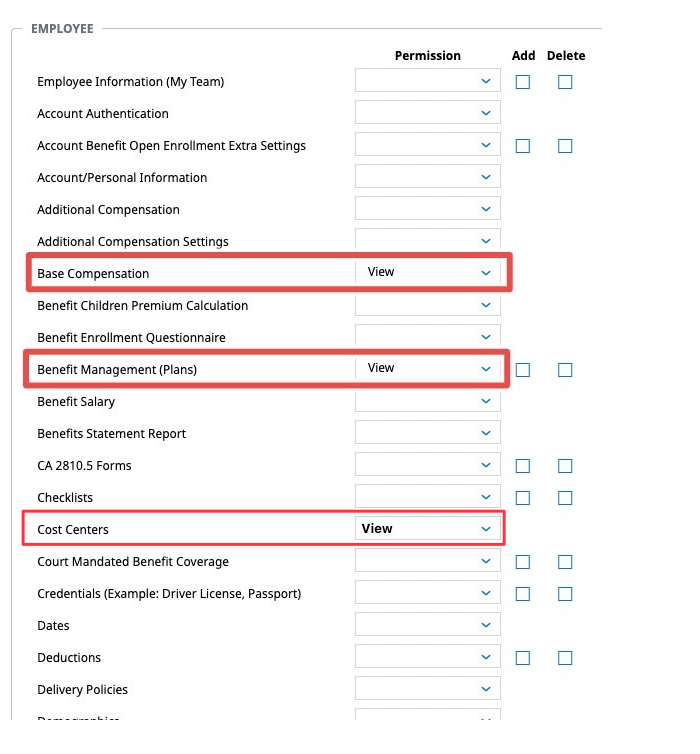
* In your **HR** tab:
* Find **Employee Management**, **Base Compensation**.
* Select **View** from the drop-down menu.
* Find **Benefit Management (Plans)**.
* Select **View**.
* Find **Cost Centers**.
* Select **View**.
* Find **Total Compensation**.
* Select **View**.
* Find **HR Custom Values**.
* Select **View**.
* Under **Leave of Absence Management** near the bottom, select **Manage Requests** (if applicable).
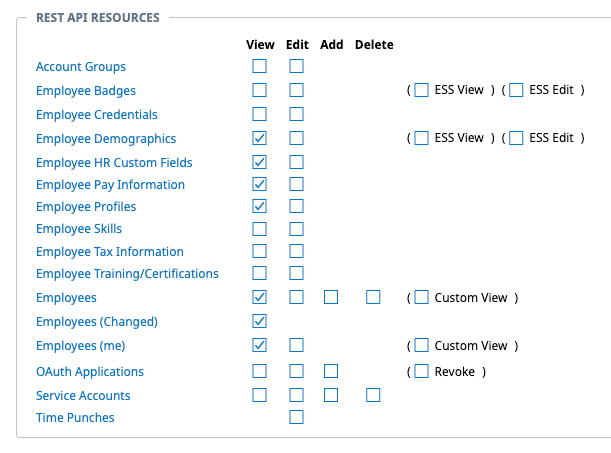
* In your **Modules** tab (if applicable):
* Scroll to **Rest API Resources**.
* Select **Employee Demographics**, **Employee HR Custom Fields**, **Employee Profiles**, **Employee Pay Information**, **Employees**, **Employees (Changed)**, and **Employees (me)**.
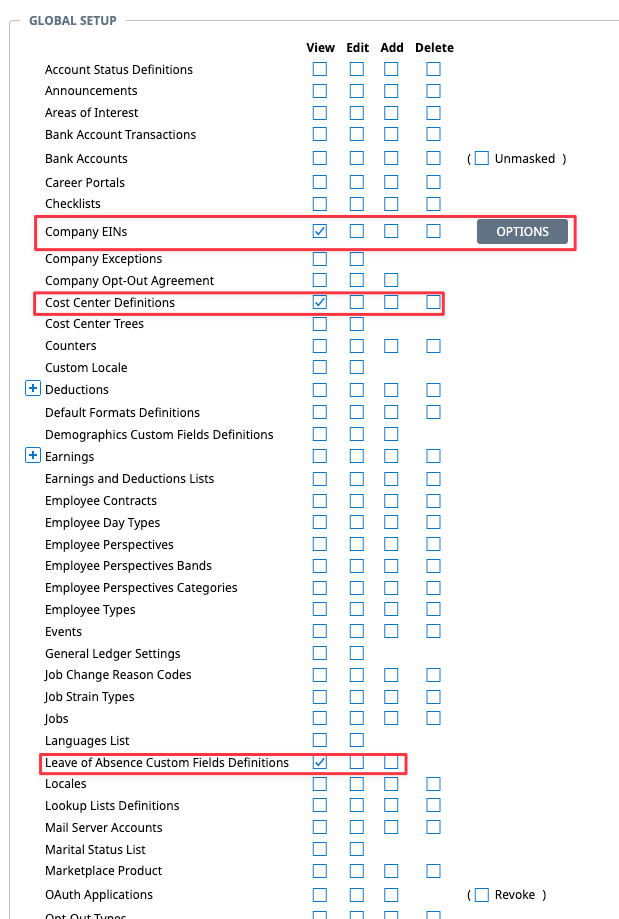
* In your **Global** tab (if applicable):
* In **Global Setup**, find **Company EINs**, **Cost Center Definitions**, and **Leave of Absence Custom Fields Definitions**.
* Select **View** for each.
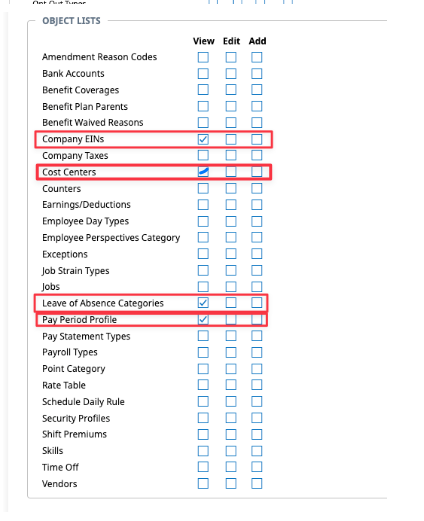
* In **Object Lists**, find **Company EINs**, **Cost Centers**, **Leave of Absence Categories**, and **Pay Period Profile**.
* Select **View** for all.
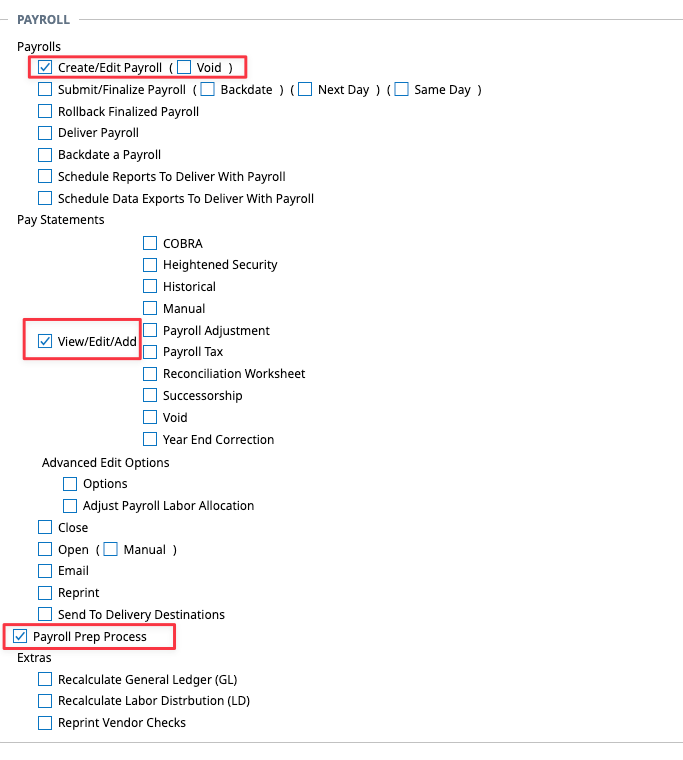
* In your **Payroll** tab (if applicable):
* Find the **Payroll** section. Click **Create/Edit Payroll** and **View/Edit/Add** next to payroll adjustment.
* Select **Payroll Prep Process**.
#### Step 5: Create your service account
* From **Settings > Global Setup > Company Setup**, go to **Edit Tabs**.
* From the **Available Windows** box on the right side of the screen, scroll down to **Service Accounts**. Drag it to the top section in the middle. Click **Save**.
* Click **Add Service Account**. To create a new account, enter the following details:
* Username: **Drivetrain Integration**
* Password: Generate a secure password.
* Store these two details in a secure document.
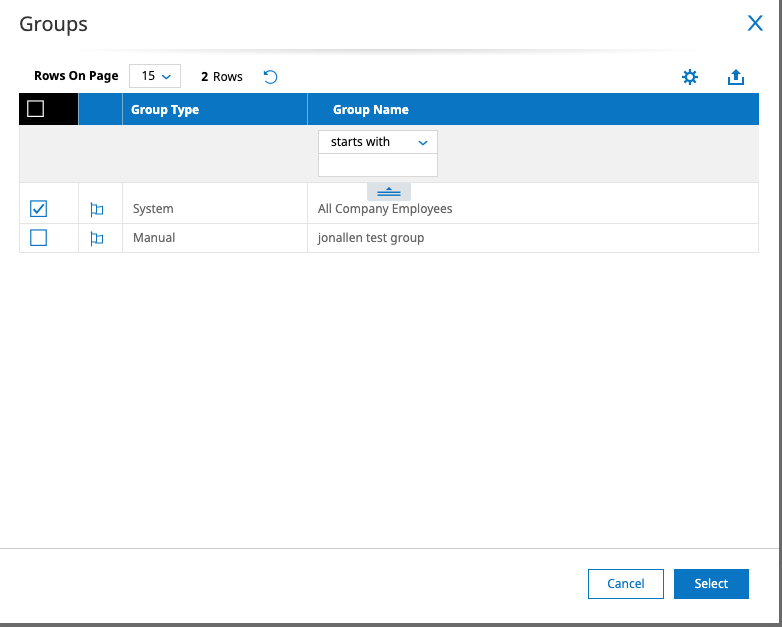
* Then, enter the **Security Profile** you created. Click the **magnifying glass** for Account Groups and select **All Company Employees**.
#### Step 6: Share details with your Drivetrain team
Share the following credentials via a secure document with your Drivetrain team:
* Domain
* Company Short Name
* API Key
* User ID / Username
* Password
---
# Agent Instructions
This documentation is published with GitBook. GitBook is the documentation platform designed so that both humans and AI agents can read, navigate, and reason over technical content effectively. Learn more at gitbook.com.
## Querying This Documentation
If you need additional information that is not directly available in this page, you can query the documentation by asking a question.
Perform an HTTP GET request on the following URL with the `ask` and `goal` query parameters:
```
GET https://integrations.drivetrain.ai/integration-guide/readme/hris-and-ats/integrating-with-ukg-ready.md?ask=&goal=
```
`ask` is the immediate question: it should be specific, self-contained, and written in natural language.
`goal` is what the user is ultimately trying to achieve, the reason they need the answer. Sharing it helps GitBook give you a better, more relevant answer. A goal is most helpful when it describes the outcome the user wants rather than restating the question. For example, with `ask=how do I create an API token`, a goal like `automate deployments from our CI pipeline` lets GitBook tailor the answer to that use case.
The response will contain a direct answer to the question and relevant excerpts and sources from the documentation.
Use this mechanism when the answer is not explicitly present in the current page, you need clarification or additional context, or you want to retrieve related documentation sections.